Docs / Get started
Start here
In five minutes you will import a list of leads, clean up the messy company names, and export the result. You don't need any API keys, and it costs nothing.
Import 18 made-up solar installers, turn SUNBRIGHT ENERGY LLC into Sunbright Energy on every row, and download the cleaned list. The same steps work for any list and for every other kind of enrichment.
Open the app and choose how to start
Go to app.stacksushi.com. You will see the sign-in screen. You have two ways to begin:
- 1 Create account. Enter your email and a password. We send a confirmation link: click it, then sign in. Prefer no password? Choose Email me a sign-in link instead. Tables saved in an account are there on every device.
- 2 Continue without an account. Try the app straight away. Your tables are saved only in this browser. You can move them to an account later: the app offers a Move to my account button when you sign in.
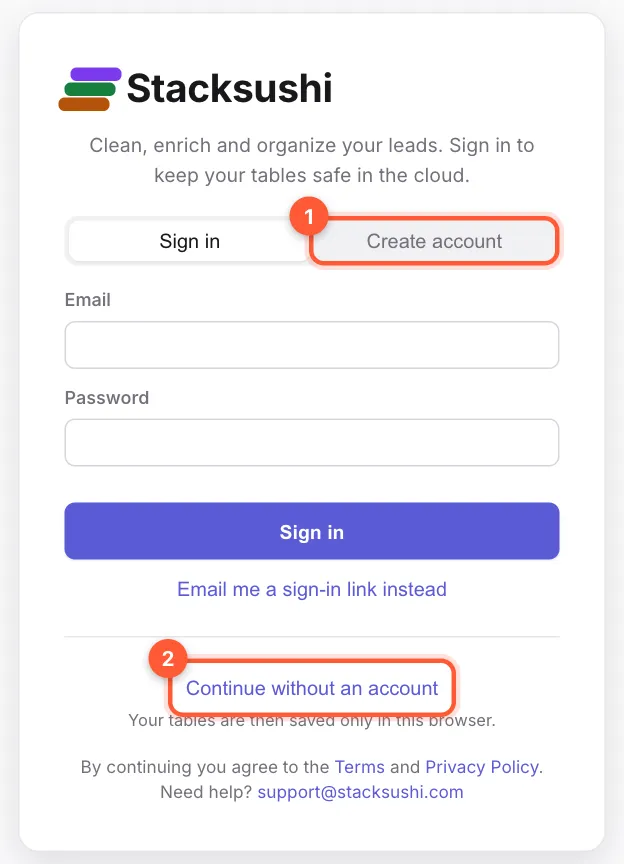
If you plan to keep your data, create an account. A table saved only in one browser is lost if you clear that browser's data.
Import a list
You start on the Your tables screen, which is empty the first time. Click 1 Import a CSV and choose sample-leads.csv. (No file handy? Try sample data loads a small example instead.)
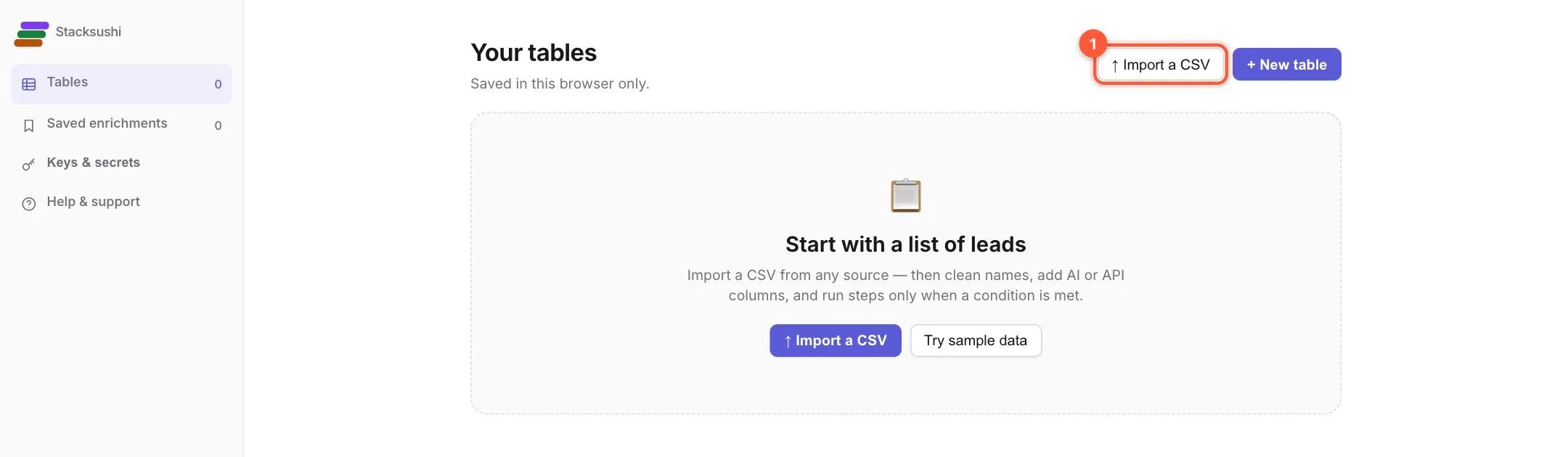
A new table opens, and a message confirms: Added 18 rows and 6 new columns. The first line of your file becomes the column names.
Look around your table
Each row is a lead and each column is a detail about it. Along the top you will see the table name, how many rows and columns it has, and whether it is saved. Under that is the toolbar: + Add enrichment, + Row, search, Filters, Columns and Views. Remove duplicates, Import CSV and Export CSV are on the right.
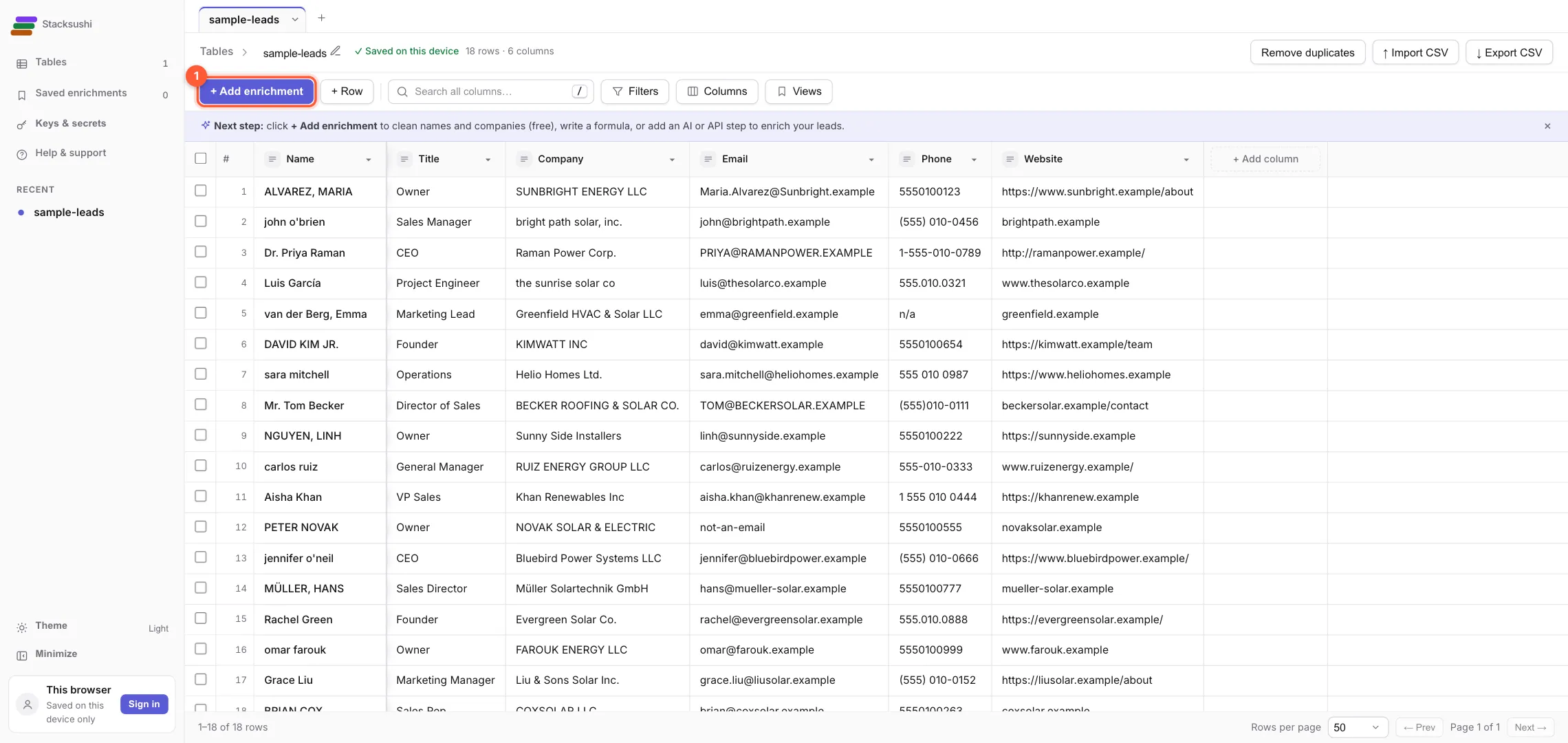
An enrichment adds a new column next to your data and fills it in. Your original columns are never changed. Click 1 + Add enrichment.
Pick an enrichment
A palette opens with everything you can add. Type in the 1 search box to find one fast, or browse the groups on the left:
- Clean data: fixes names, companies, emails, phone numbers and web addresses. Free, instant and no keys.
- Formulas: describe a change in plain English and a formula is written for you.
- AI: ask a question about each row. Uses your own AI key.
- Integrations: Apollo, Findymail, Prospeo and others. Add your key and go.
- API & combine: call any API, look up another sheet, send rows elsewhere, or build an email waterfall.
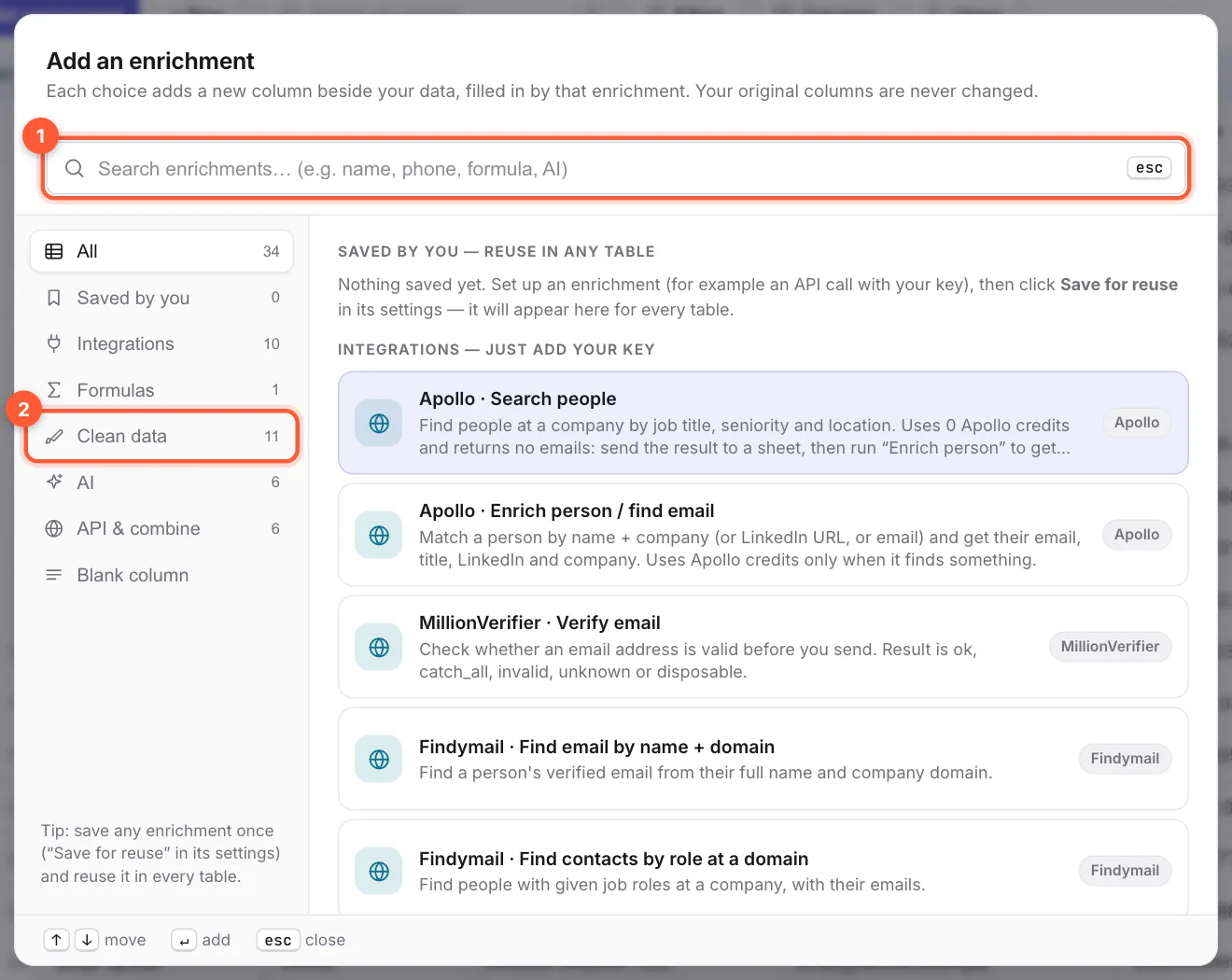
Open 2 Clean data and choose Clean company name. Cleaning runs in your browser, so nothing is sent anywhere.
Set it up
A panel slides in from the right. For a cleaning step there is almost nothing to decide:
- 1 Column name: what the new column will be called. Keep the suggestion or type your own.
- 2 Clean which column? Stacksushi guessed
Company. Change it if it guessed wrong. - The Preview shows the first three rows before and after. Nothing has changed yet, so this is a safe place to check.
- 3 Click Create column.
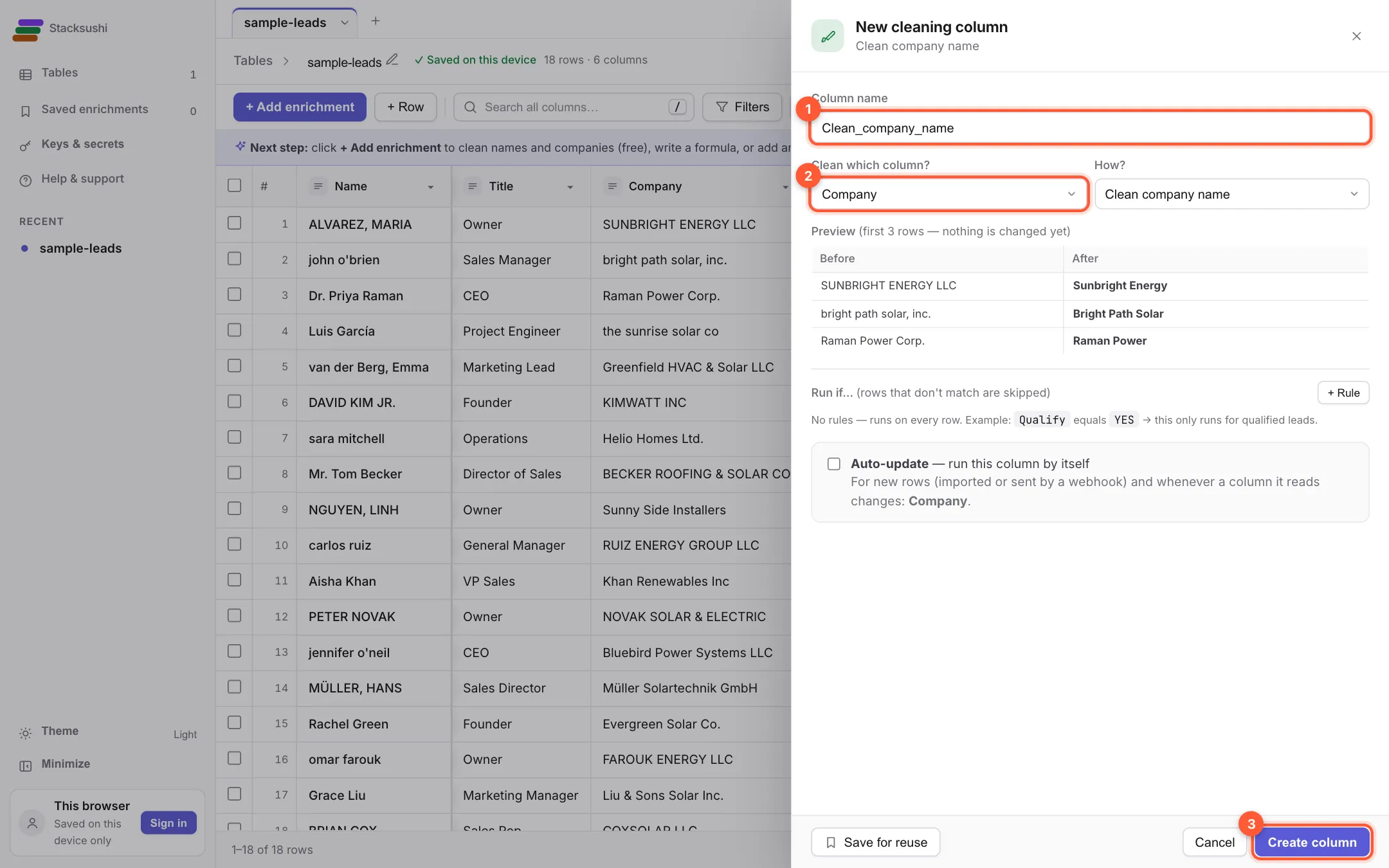
Run if… skips rows that don't match a rule, and Auto-update runs the column by itself whenever new rows arrive. Both are covered in the guide on running columns.
Run it
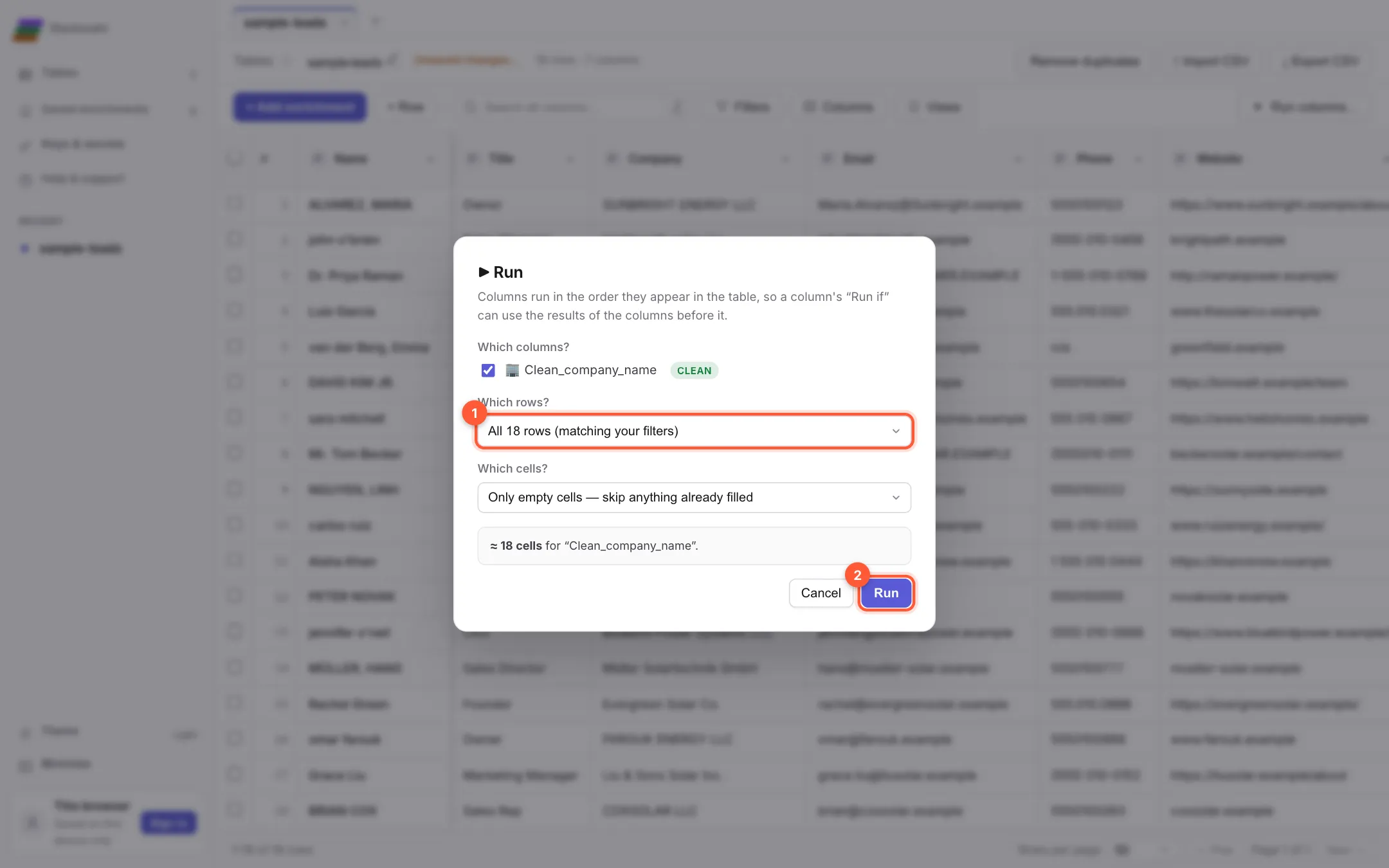
The Run window opens straight away. It asks two questions:
- 1 Which rows? Choose Test on 1 row, The first N rows, Selected rows or All rows. For a free cleaning step, pick All 18 rows.
- Which cells? The default, Only empty cells, skips anything already filled, so running again never overwrites earlier results.
Click 2 Run.
When a step uses your own AI or API key, start with Test on 1 row. You see the result and the cost of one row before you run a thousand.
Check the result
The new column fills in and its header says 18 filled. SUNBRIGHT ENERGY LLC is now Sunbright Energy, bright path solar, inc. is Bright Path Solar, and the sunrise solar co is Sunrise Solar. The original Company column is untouched.
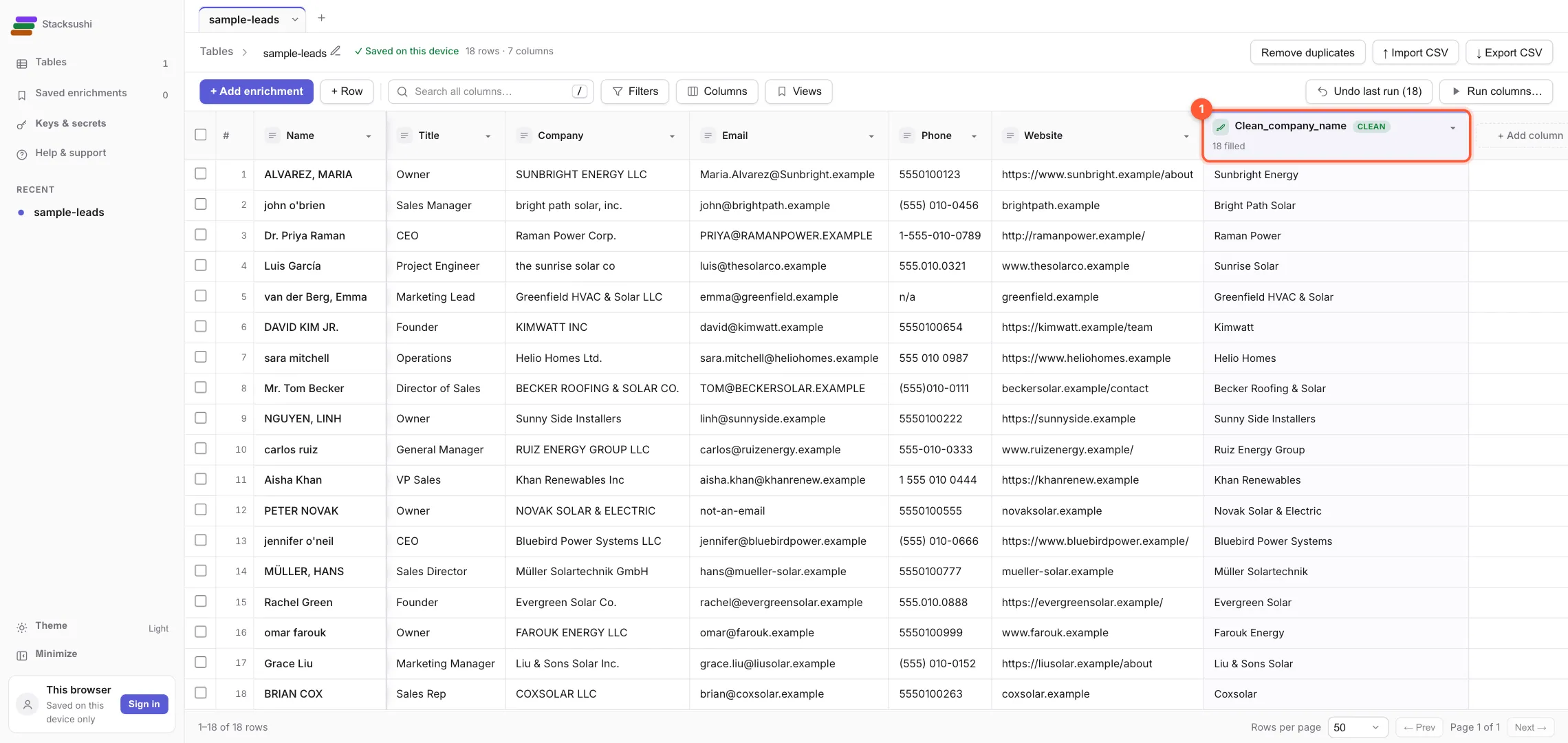
Not happy with it? Click Undo last run at the top and the cells go back to how they were.
Export your list
Click 1 Export CSV at the top right. You get a CSV of the rows currently shown (all of them, unless you have filtered), including your new column. Open it in Excel, Google Sheets or upload it to your outreach tool.

Where to go next
You have used the whole loop: import → add an enrichment → run → export. Everything else in Stacksushi is a different enrichment in step 4. To get a feel for it, try these on the same table:
- Clean email on the
Emailcolumn. Row 12 holdsnot-an-email, so its result is left blank. - Phone (US format) on
Phoneturns five different layouts into(555) 010-0123. - Website → domain on
Websiteturnshttps://www.sunbright.example/aboutintosunbright.example. - Clean person name on
NameturnsALVAREZ, MARIAintoMaria Alvarez.
More guides are on the way: finding things in a big table, AI and API columns, the work-email waterfall, API keys, and plans and billing.