Docs / Your data
Finding things
Big lists are only useful if you can narrow them down. This guide shows how to search, filter by text, by several values at once, by number and by date, sort, hide columns, and save a combination as a view.
Filters and views never change your data. They only change what you see. Examples use the sample list from Start here.
Search
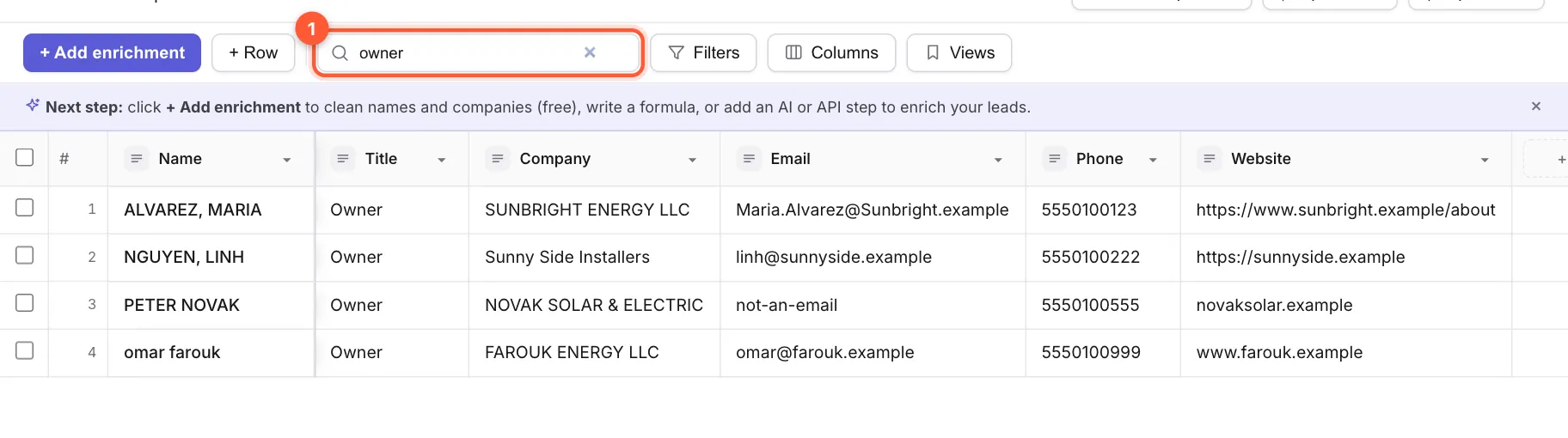
Type in 1 Search all columns…, or press / to jump to it from anywhere in the table. Rows that have your word in any column stay; the rest are hidden. Searching owner finds the four leads whose title is Owner. Click the × in the box to clear it.
Filters: show only the rows you want
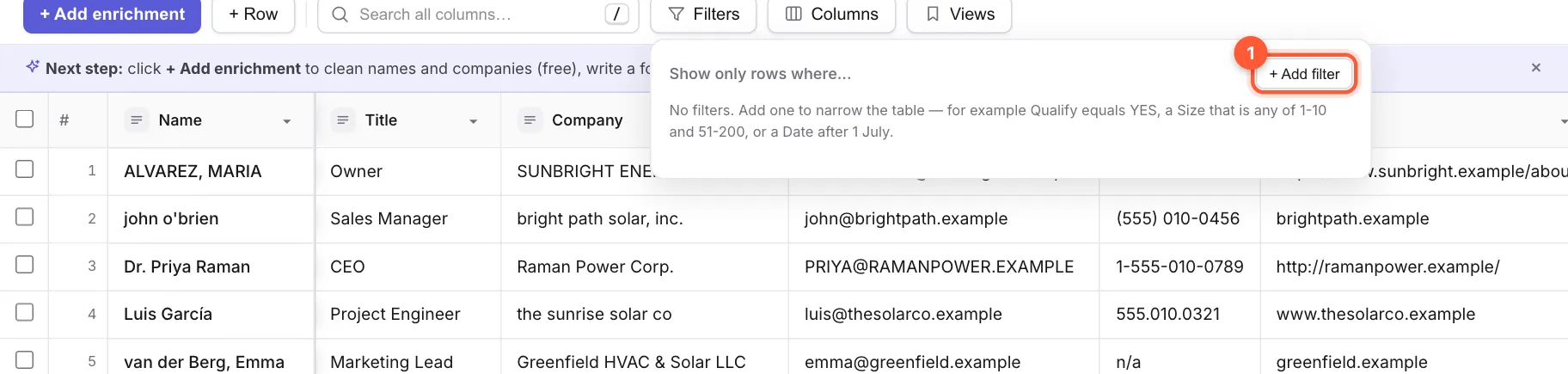
Search is quick. Filters are exact. Click Filters, then 1 + Add filter. Each filter is a sentence with three parts: a column, a condition and a value, for example Title · contains · manager. The ✕ on the right removes a filter.
Add two or more filters and a line appears: Match ALL / ANY of these filters. ALL keeps rows that meet every filter. ANY keeps rows that meet at least one.
The conditions are grouped:
| Group | Conditions |
|---|---|
| Text | contains, doesn't contain, equals, doesn't equal, starts with |
| Several values | is any of, is none of |
| Number | is greater than, is less than, is between |
| Date | is on date, is before date, is after date, is between dates, is within the last … days |
| Empty or failed | is empty, is not empty, failed with an error |
Pick several values at once
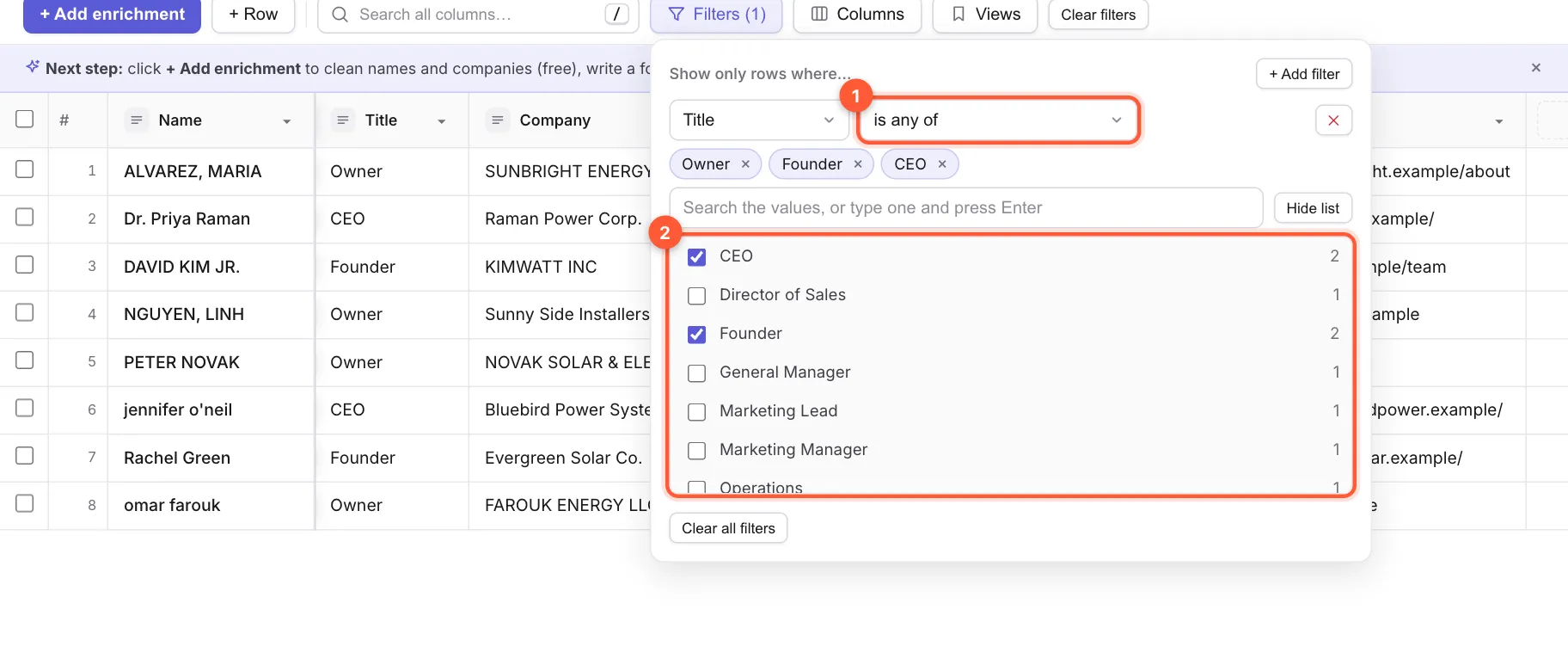
This is the one that saves the most time. To see your decision makers, choose Title, then 1 is any of. Click Pick from list to open 2 a list of every value in that column with how many rows have it, and tick Owner, Founder and CEO. You can also type a value and press Enter. is none of works the other way round.
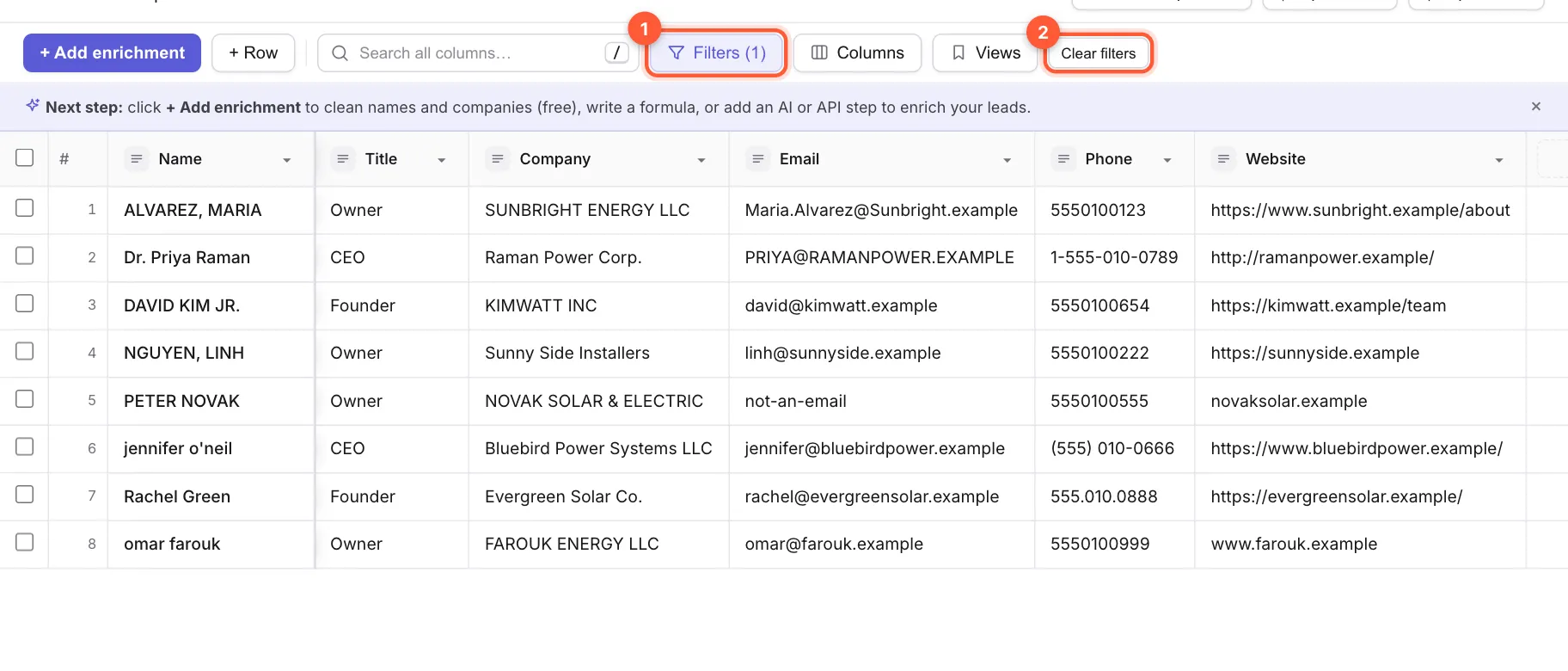
Close the pop-up and the table shows the 8 leads whose title is Owner, Founder or CEO. The Filters button shows how many filters are on, and a 2 Clear filters button appears next to Views.
Numbers and dates
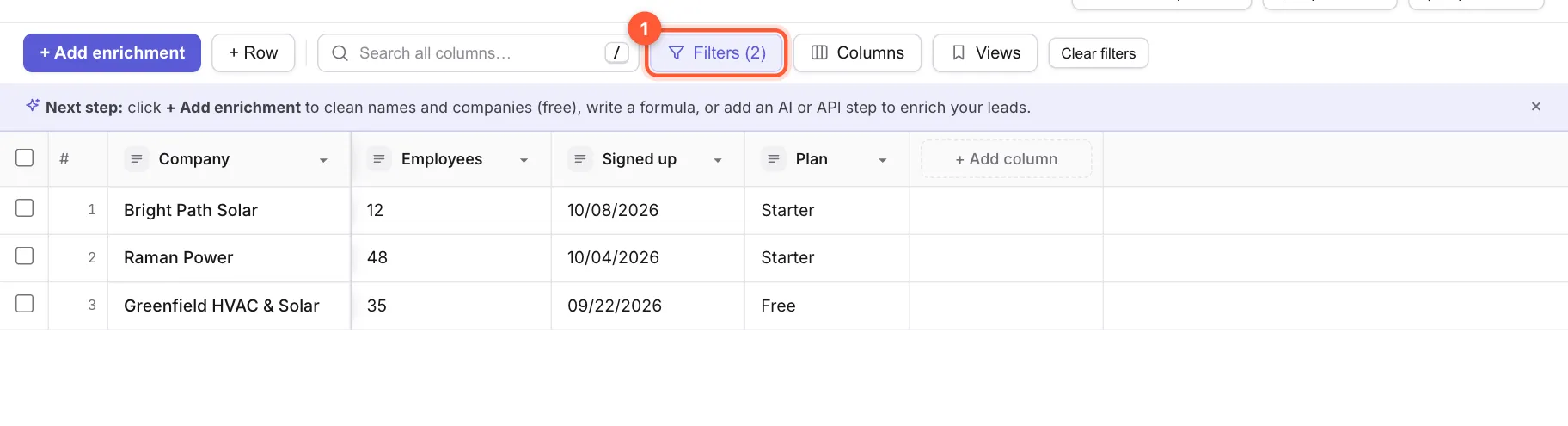
Numbers and dates are stored as text, but the number and date conditions read them as numbers and dates, so you can ask real questions. The example below uses a small list with a company size and a sign-up date. ↓ Download sample-accounts.csv (the dates are set relative to today, so there are always some from the last 30 days).
Import it with Import a CSV, then try:
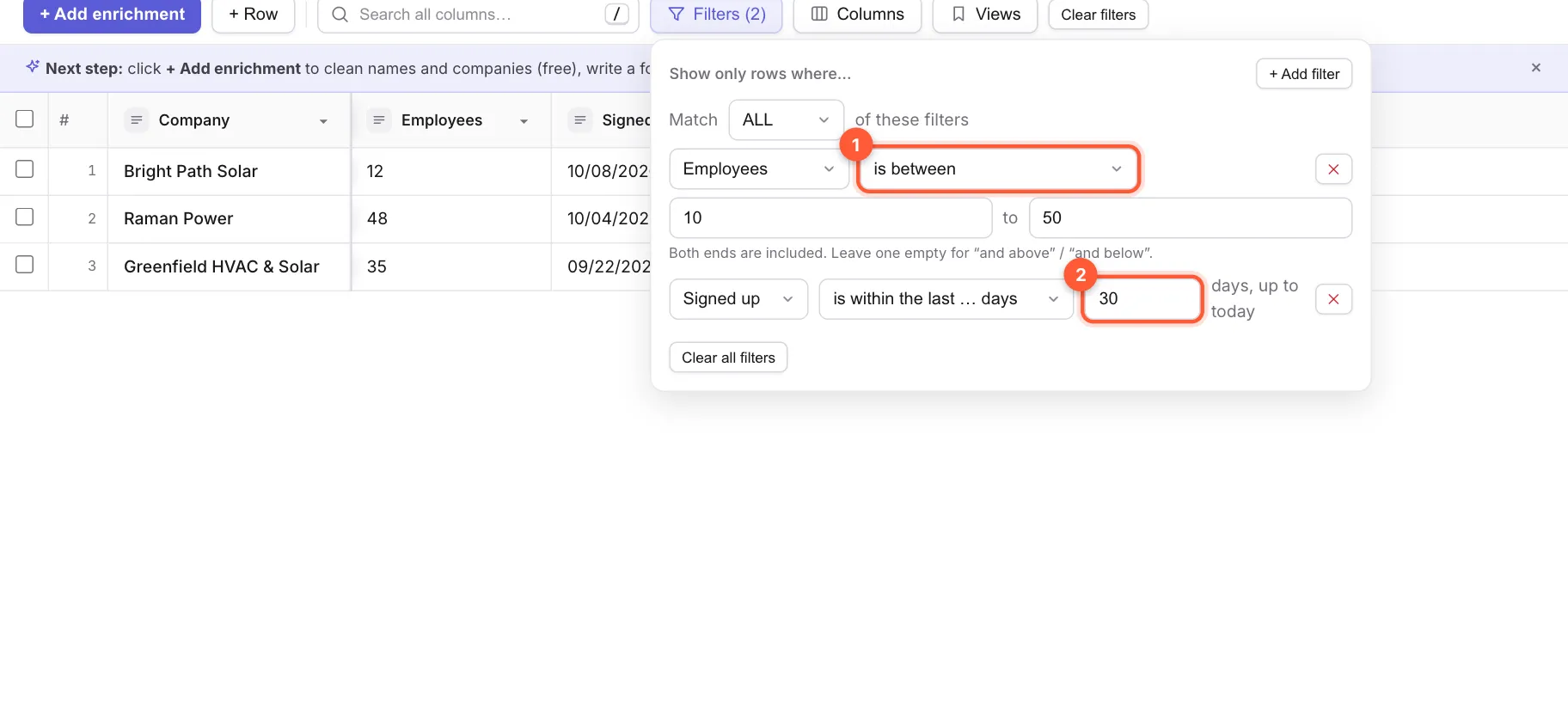
- 1 Employees · is between · 10 and 50. Both ends are included. Leave one box empty for "and above" or "and below". Values like
$1,200and45%are understood. - 2 Signed up · is within the last … days · 30. That means from 30 days ago up to today.
How dates are read
You can type a date the way your column writes it, or pick one from the 📅 calendar. Stacksushi reads 2026-07-21, 07/21/2026, 21/07/2026, 7/4/26, 21.07.2026, Jul 21, 2026 and 21 July 2026. Under the box a small line shows how it understood your date, for example → Jul 21, 2026.
When both parts are 12 or less, Stacksushi reads it as month first (07/04 is July 4), the US way. If the column clearly uses day first (for example it holds 21/07/2026), it follows the column instead. Check the line under the date box if a result surprises you.
Show and hide columns
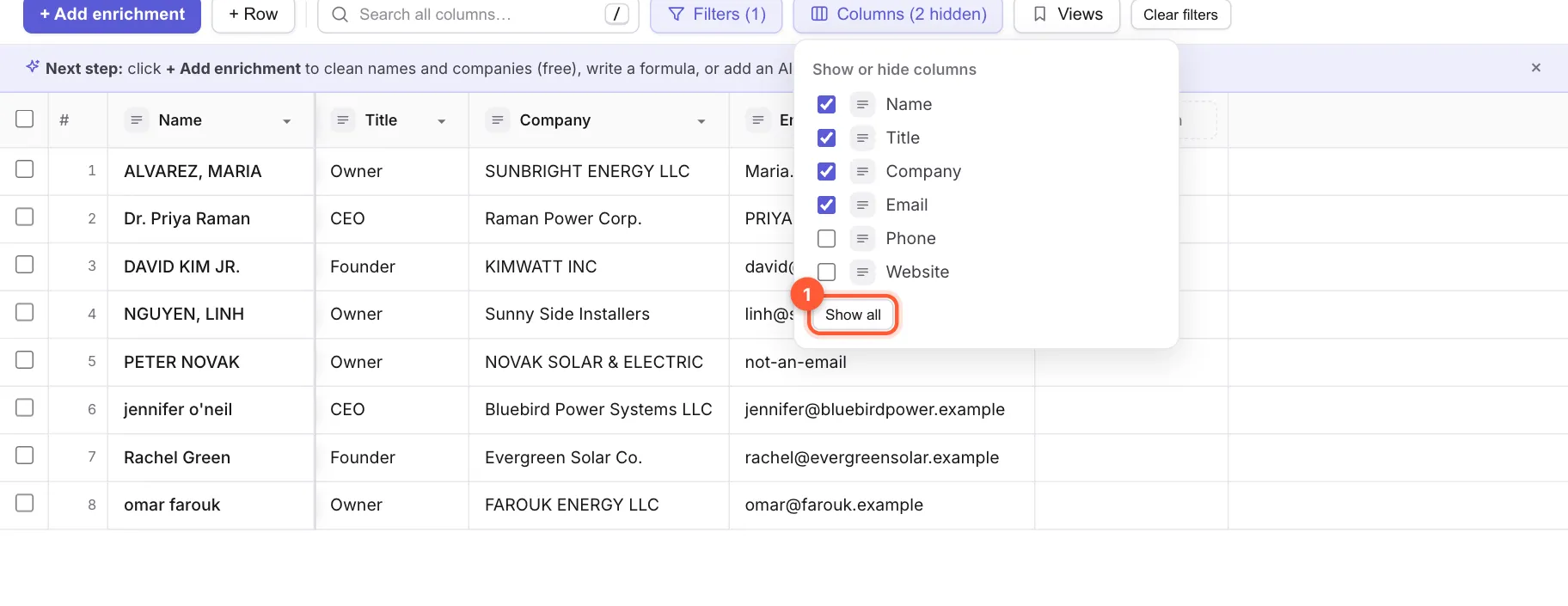
Wide tables get hard to read. Click Columns to tick or untick each column. 1 Show all brings everything back. The button then reads Columns (2 hidden). Nothing is deleted: hidden columns are still in the table and in an export.
Sort
Open a column's menu (the small arrow in its header) and choose Sort A → Z or Sort Z → A. Text sorts alphabetically. A column of numbers sorts as numbers (9 before 100) and a column of dates sorts by date, not by how the text looks.
Save it as a view
Found a combination you'll need again? Click Views, then + Save current view…, name it and click Save view. A view remembers your filters, sort and which columns are shown.
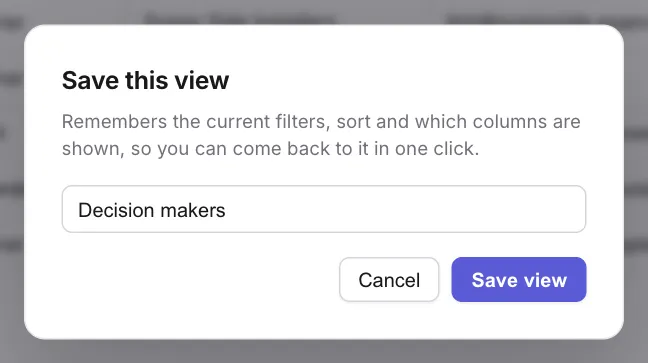
Your saved view appears in the Views list with a summary such as 1 filter · 2 hidden. Click it to apply it, use the pencil to rename it, or the bin to delete it. All rows goes back to everything. The Views button shows the name of the view you are in.
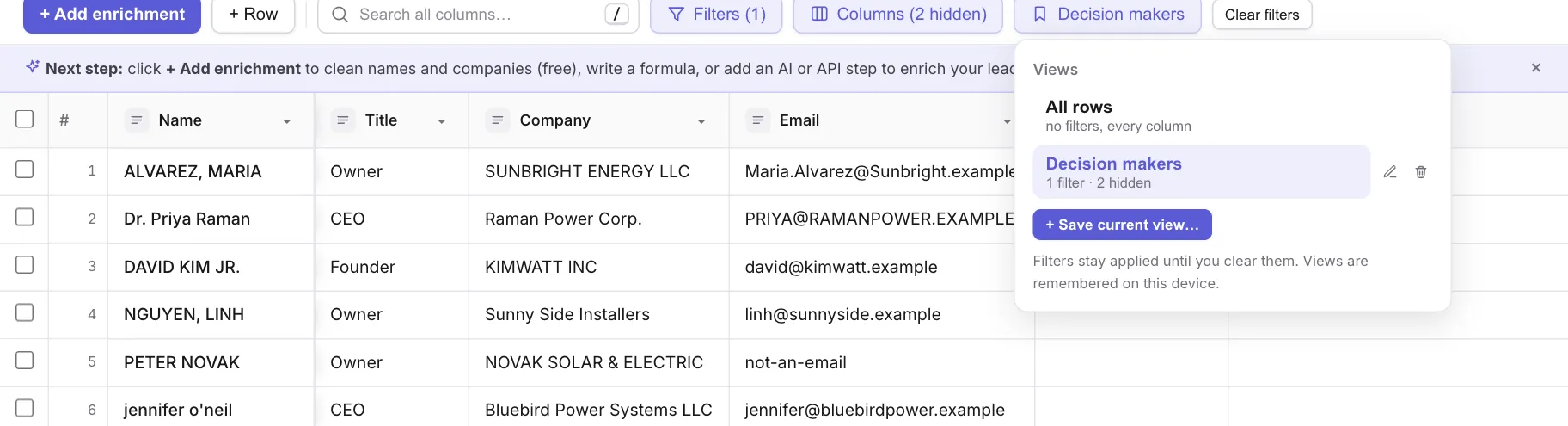
The Views list says it: views are remembered on this device. They don't follow your account to another computer or browser yet. Filters you leave on a table are remembered per table on the same device, too.