Docs / Account
API keys
Stacksushi does not resell data or AI. You bring your own accounts, and your own keys connect Stacksushi to them. This page explains where to get a key, where to put it and what happens to it afterwards.
Which keys do I need?
| You want to… | You need a key from |
|---|---|
| Use an AI column or write formulas by describing them | Anthropic or OpenAI |
| Find or check emails and people | Apollo, Findymail, Prospeo or MillionVerifier |
| Run an Apify Actor | Apify |
| Call any other web API | That service |
| Clean data, filter, formulas you type, lookups, JSON fields | None. These are free. |
Each provider's key page is different and changes over time, so we link to it instead of copying it. In an integration's settings, the Get your key ↗ link under the key box goes to the right page. For AI, use your provider's own console. Look for “API keys” in your account.
Most providers let you cap what a key can spend. Set a small limit while you are trying things out.
Add a key
There are two places, and they save to the same list:
- In an integration or waterfall. Paste the key into the box at the top of its settings and click Save key. This is the easiest way.
- In Settings. Click Keys & secrets in the sidebar. 1 holds the Anthropic and OpenAI keys. Under Secrets for API columns, 2 each row is a name (for example
APOLLO_KEY) and its value, and 3 + Add secret adds another row. Click Save settings.
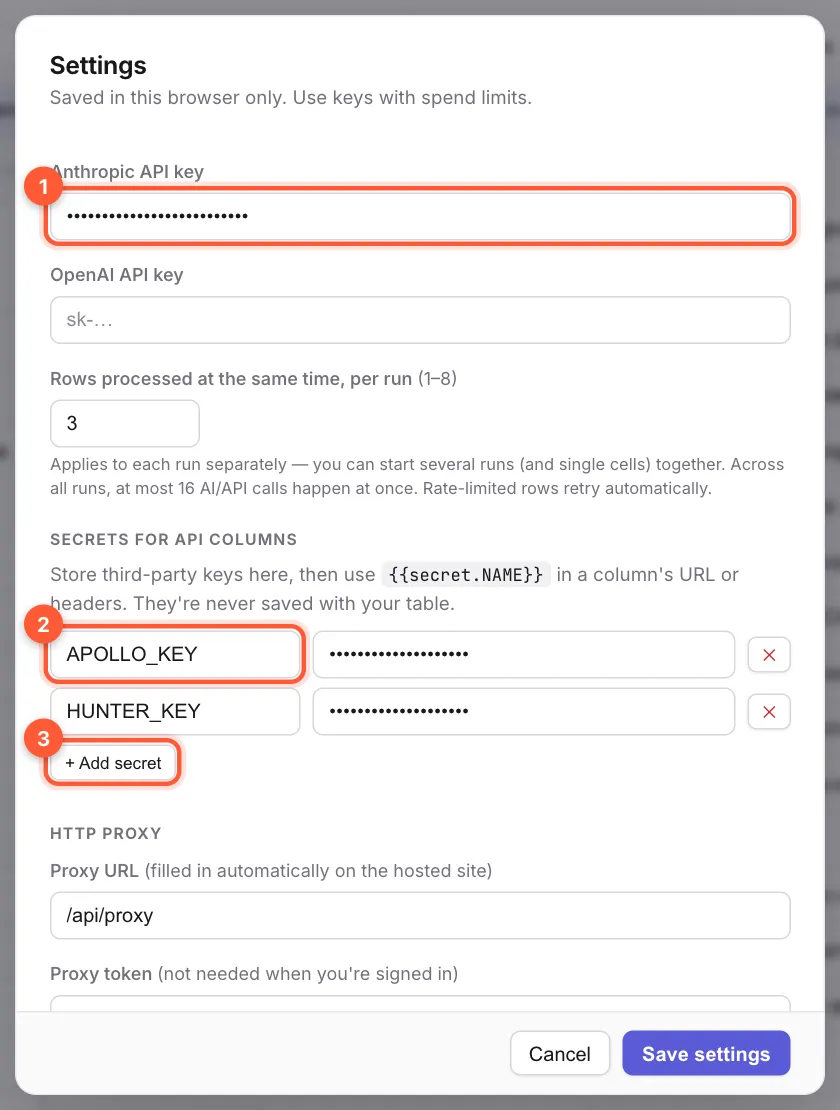
To use a secret in your own API column, write its name in double curly brackets in the address or a header: {{secret.HUNTER_KEY}}. See Call any API.
Where your keys are kept
- In this browser, so you can work straight away.
- In your account, encrypted, when you are signed in. They then follow you to other computers: sign in somewhere else and your keys are there. Without an account, keys stay in this browser only.
- Never in your tables. A table, an export or a saved enrichment holds only the name of a secret, never its value.
- Calls to providers go through the Stacksushi server (the “proxy”) because browsers often cannot call them directly. Your key is sent along for that one request. It is not logged or stored by the proxy.
Change or remove a key
In an integration, click the change link next to the saved key. In Settings, edit the value, or click the ✕ at the end of a row to remove it, then Save settings. Removing a key does not delete columns that used it. Their next run will fail with a message naming the missing key until you add it back.
A key that was revoked, expired or typed wrong shows as rejected your API key in the cell. Paste it again from the provider's page, watching for a space at the start or end. See Troubleshooting.