Docs / Enrichments
Enrichments
An enrichment is a new column that fills itself in from your data: a formula, an AI answer, a call to another service, a match from another sheet. Your original columns are never changed. This guide walks through each kind.
The pictures use the sample list from Start here and, for the last few steps, a small list of companies. ↓ Download sample-companies.csv All names, emails and websites are made up. Nothing here costs anything unless it says so. How to run, test and undo a column is in Running columns.
Where enrichments are
Click + Add enrichment. The window groups choices on the left: Saved by you, Integrations, Formulas, Clean data, AI, 1 API & combine and Blank column. Each choice has a tag on the right: Free (no outside service), Your AI key or Your keys (uses a key you add) and Your API. Type in the search box to find one by name. Click a choice and its settings open on the right.
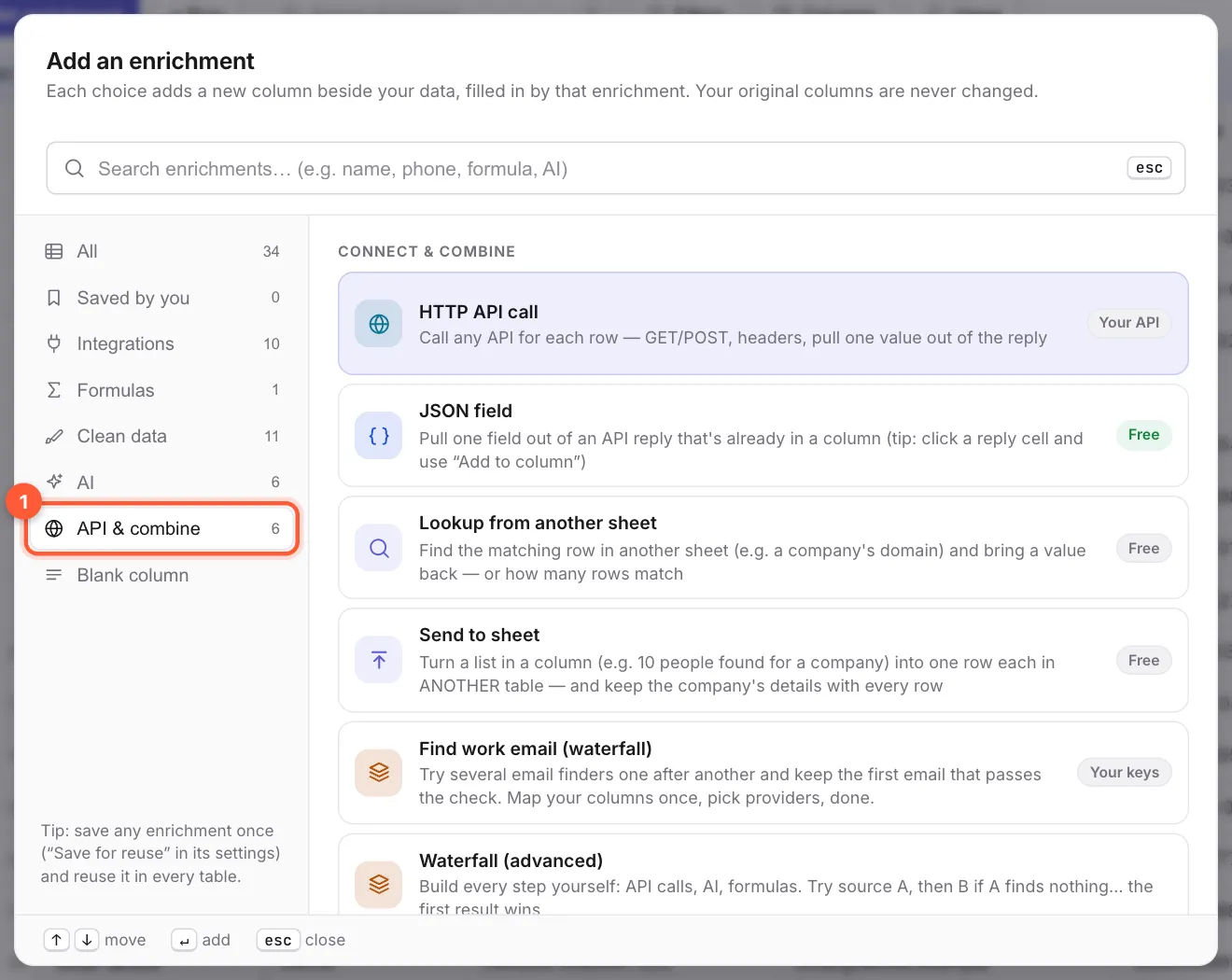
Clean data is covered in Start here. Integrations (Apollo, Findymail and others) have their own guide: Integrations.
A formula you write yourself
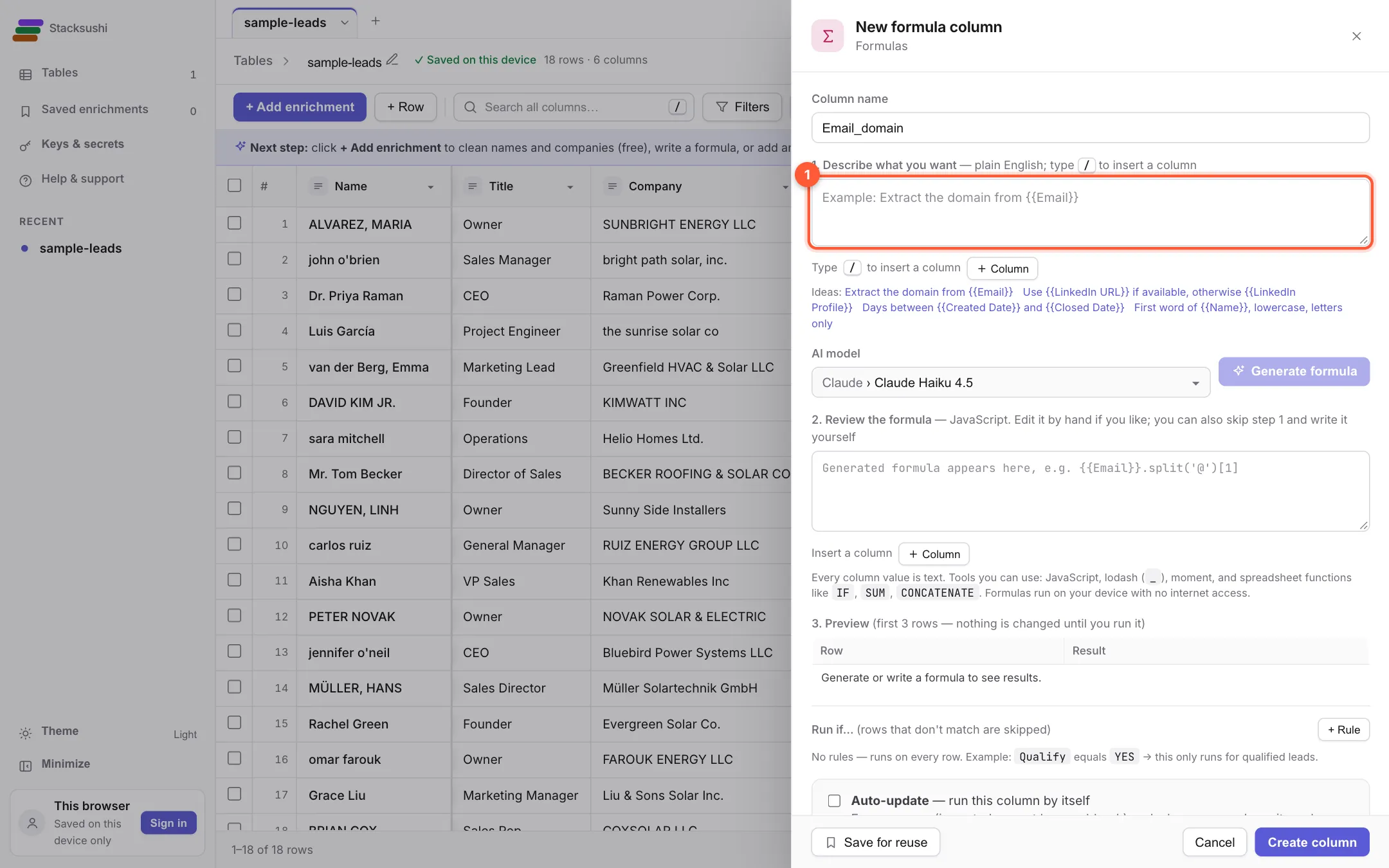
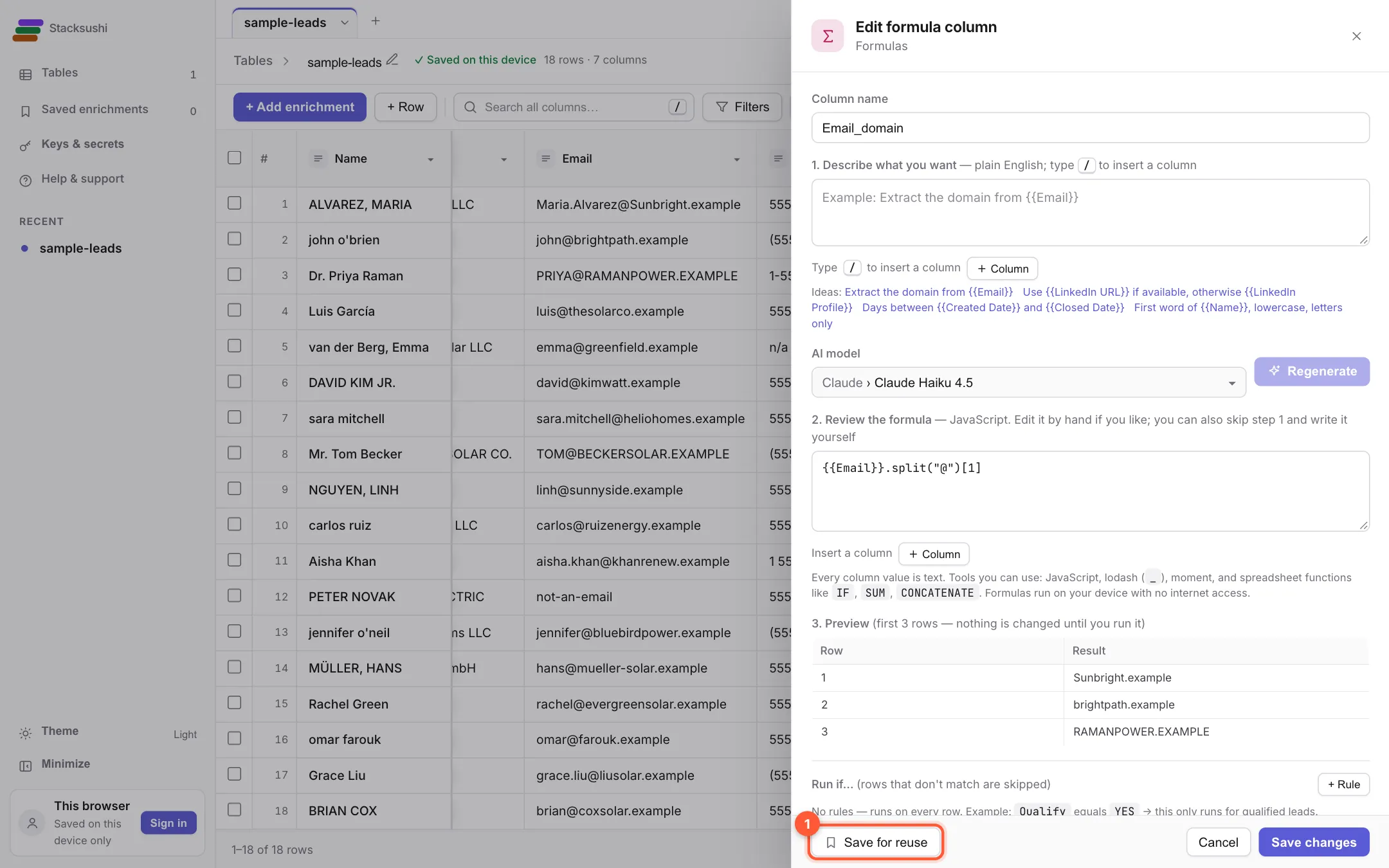
Choose Formulas. Give the column a name, for example Email_domain. There are two boxes: 1 one where you describe what you want in plain English (an AI writes the formula for you, which needs your AI key), and one holding the formula itself. If you know a little JavaScript you can type the formula directly. Refer to a column in double curly brackets: {{Email}}.split("@")[1] takes the part of the email after the @.
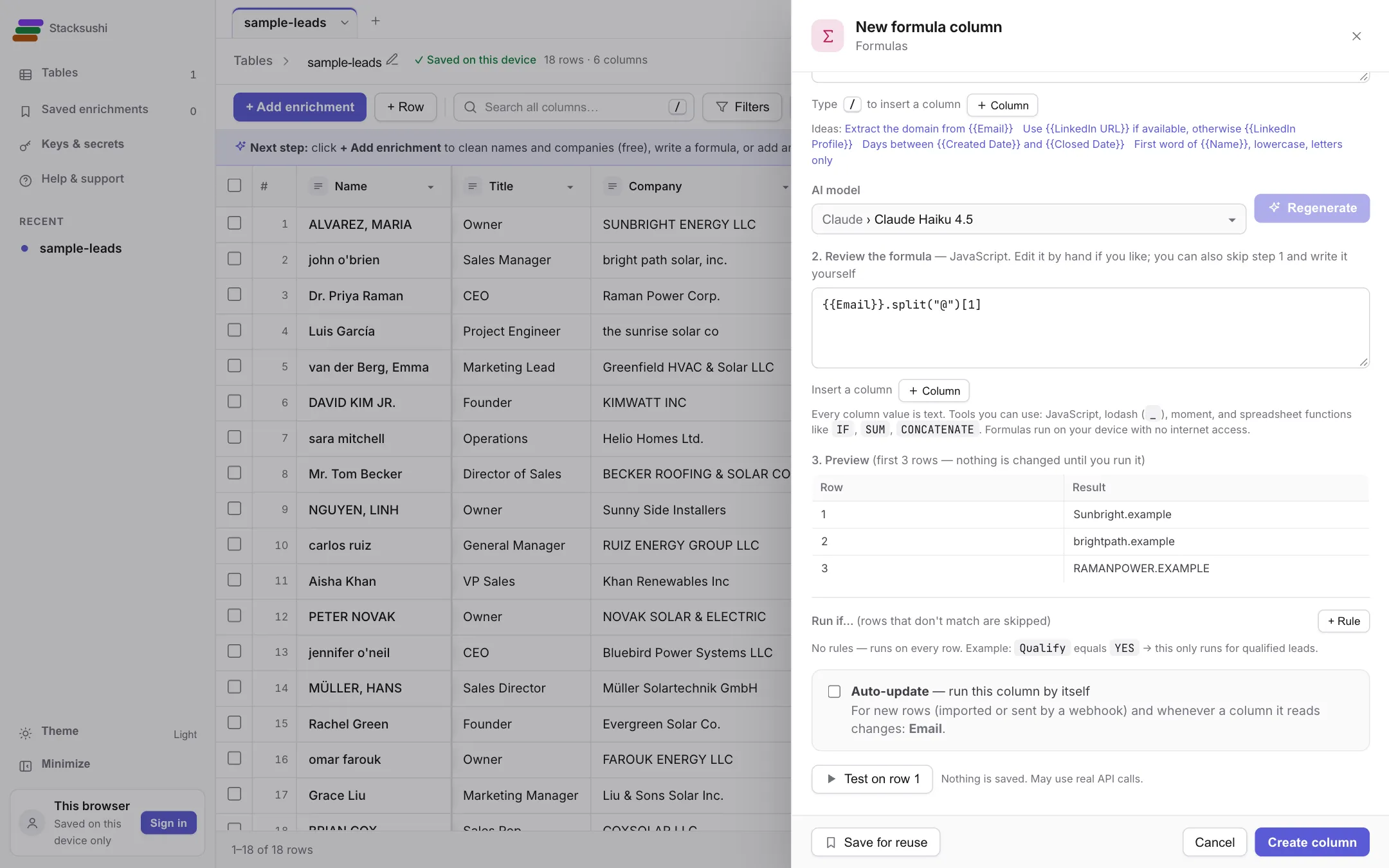
Below the formula, Preview shows the result for the first three rows before anything is saved.
Click Create column, run it on all rows and the column fills in.
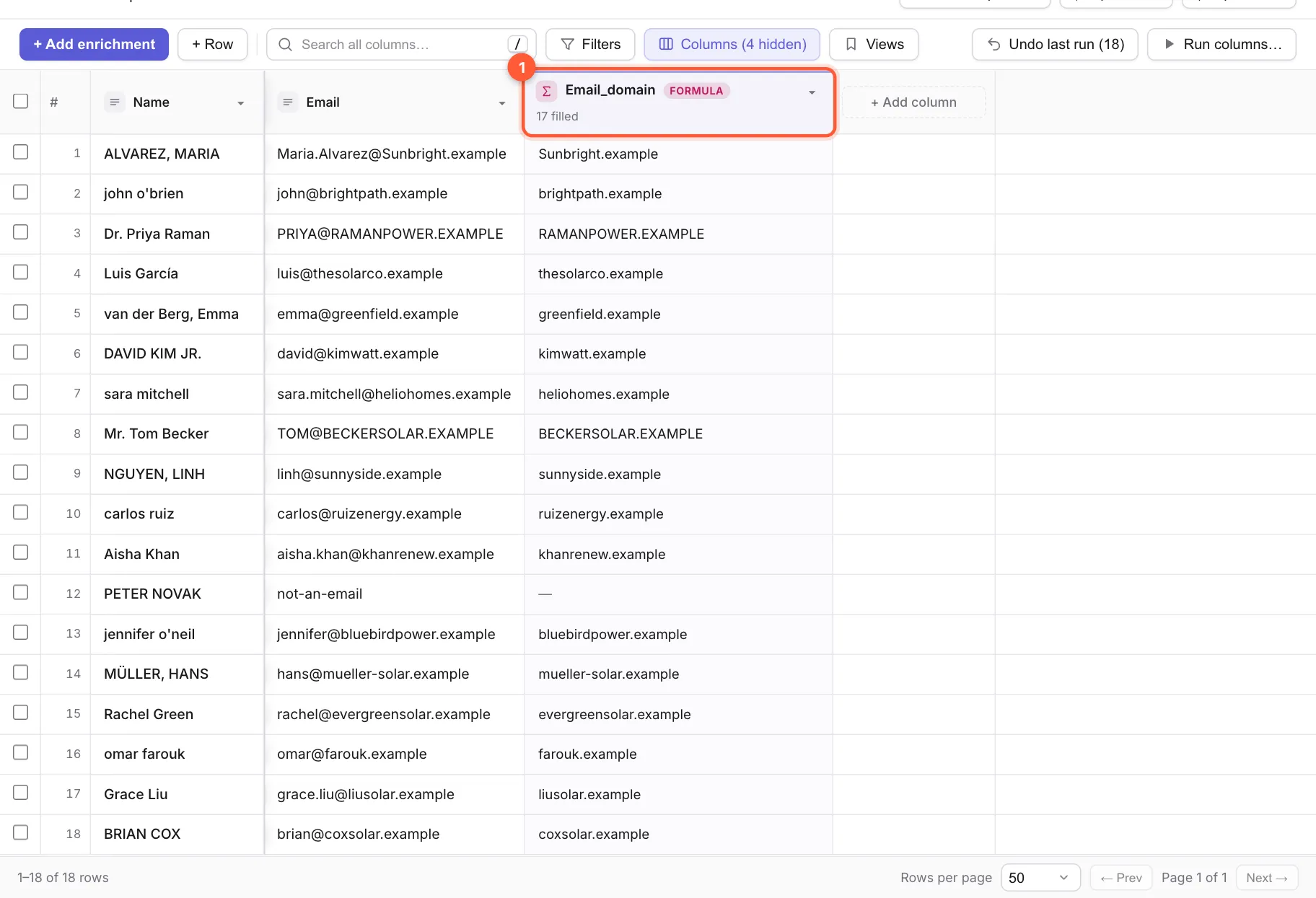
A formula only runs while the table is open in your browser. It never leaves your computer and uses no credits.
Save one to use again
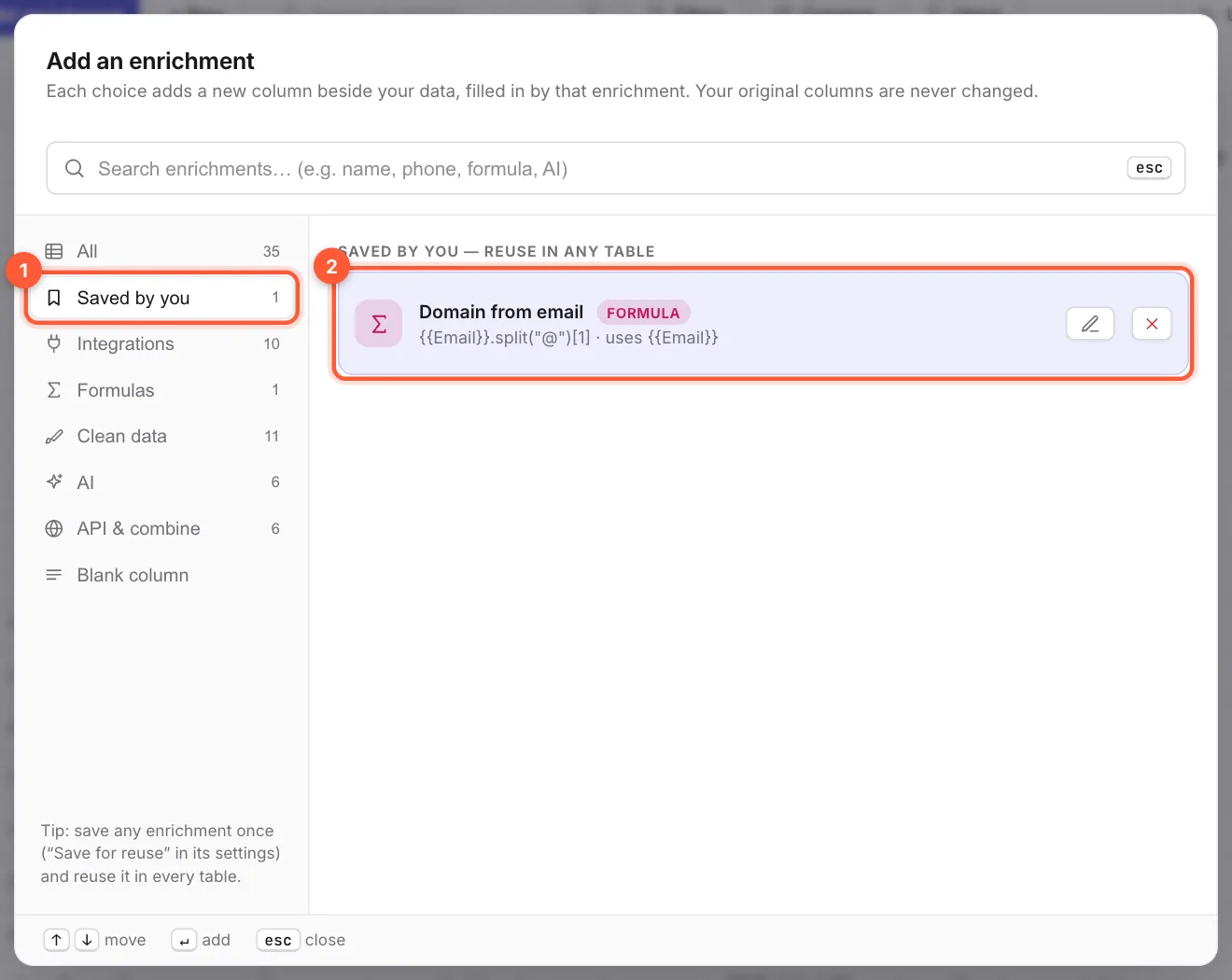
Open the column's menu, choose Edit settings and click 1 Save for reuse. Give it a name, for example Domain from email. It now appears in + Add enrichment → Saved by you in every table, and on the Saved enrichments screen in the sidebar.

An AI column
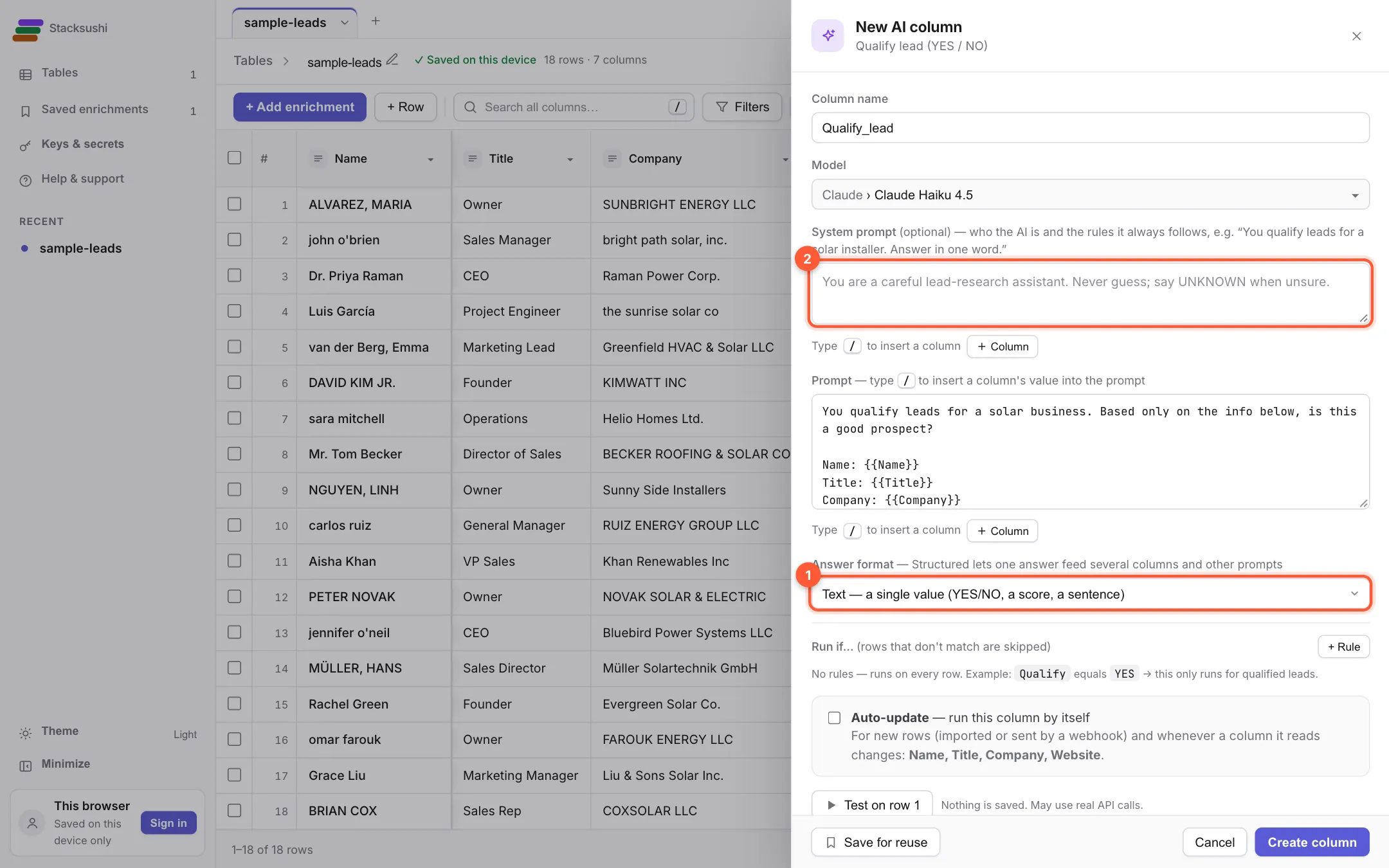
Choose something from AI, such as Qualify lead. 1 Pick the AI model, then 2 write the instruction. Put columns in curly brackets, for example Is {{Company}} a residential solar installer? Answer YES or NO. The settings can be filled in without a key, but running an AI column needs your own AI key (see how keys are saved). Each row is one AI call billed by your AI provider, so test on one row first.
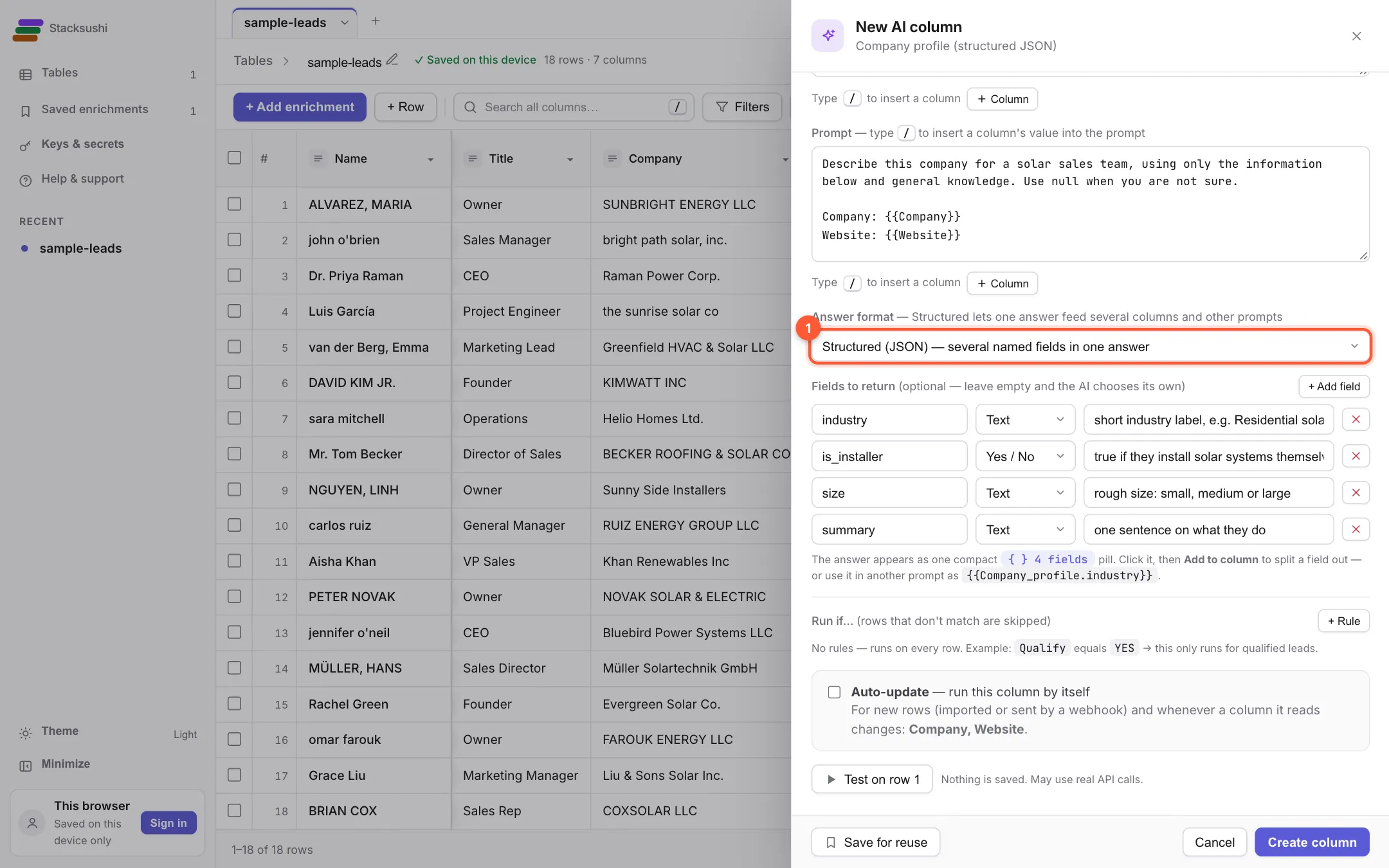
Some AI choices, such as Company profile, can return several fields at once. Set 1 the answer type to Structured and the result lands in one column that you can split into fields with the JSON field enrichment below.
Call any API
Choose HTTP API call to fetch data from any service that has a web API. Shortcut: open Paste a cURL command at the top, paste the example request from the API's documentation (or, in your browser, right-click a request in the Network tab and choose Copy as cURL) and click Fill in from cURL. The method, address, query parameters, headers and body are filled in for you. Any key it finds is saved as a private secret and replaced by a {{secret.…}} reference, so it never sits in your table. Then replace the example values with {{Column}} where each row's value should go. Or fill in the boxes by hand: Type 1 the address, using columns where you need them (https://api.example.com/v1/company?domain={{Website}}). If the service needs a key, add a header with Add a new key and value pair, for example Authorization with the value 2 Bearer {{secret.EXAMPLE_KEY}}. The {{secret.…}} part is replaced by a key you saved under Keys & secrets, so the key itself is never written into your table.
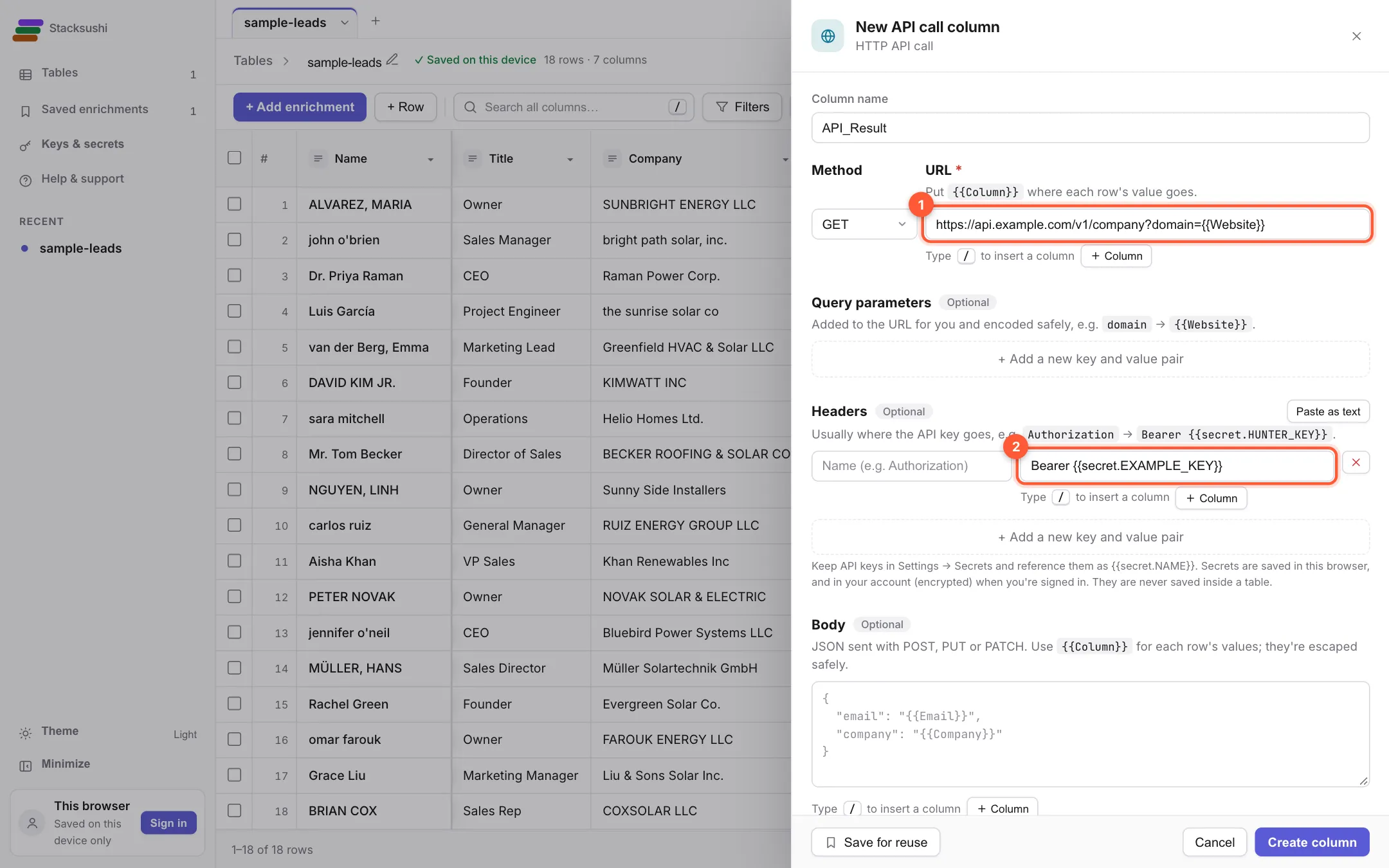
The whole reply is stored in the column. To get one value out of it, use the next enrichment.
Pull one field out of a reply
Choose JSON field. 1 Pick the column holding the reply, then type the path to the value, for example company.hq.city (dots go one level deeper, results[0].name takes the first item of a list). The preview shows the first three rows.
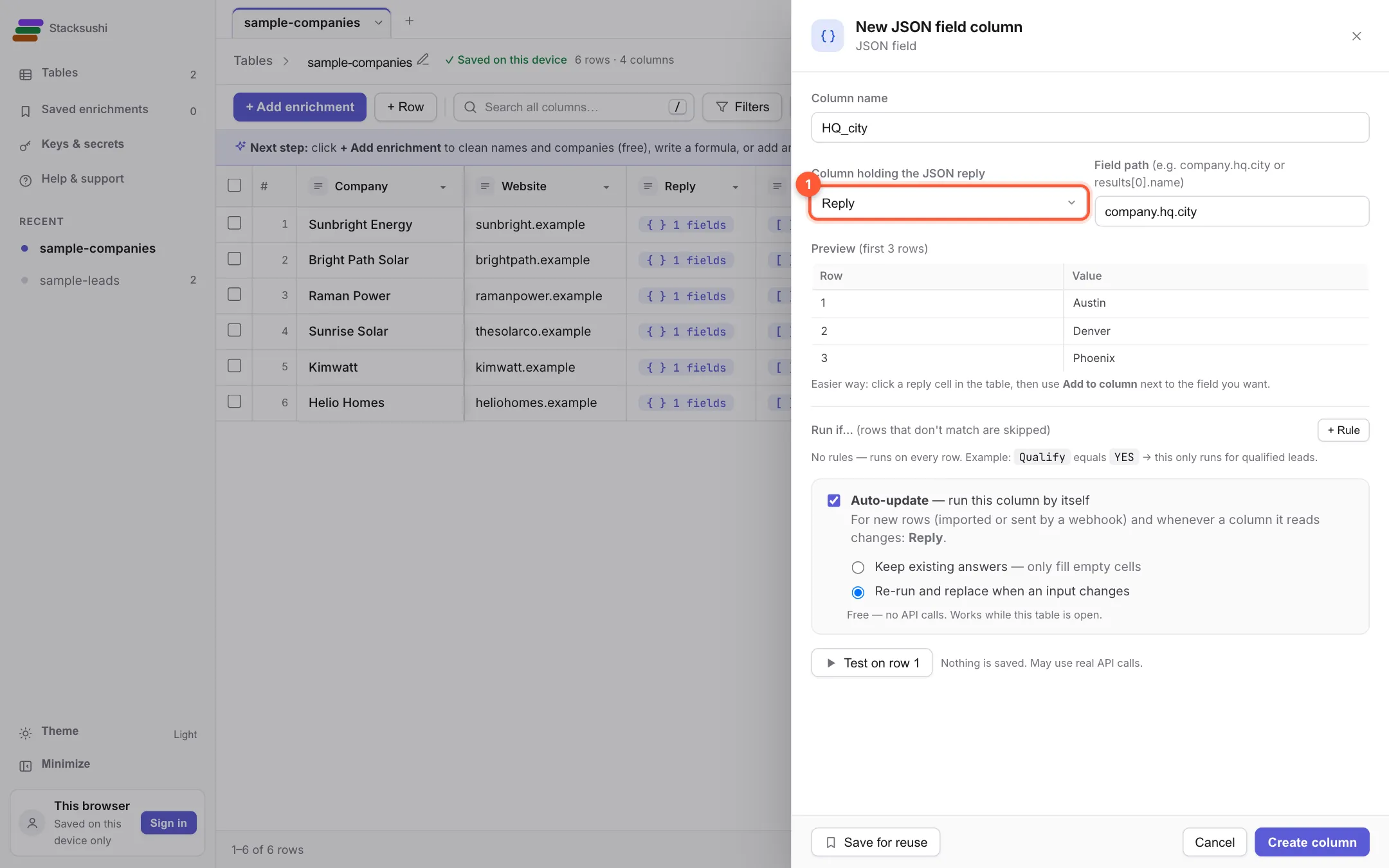
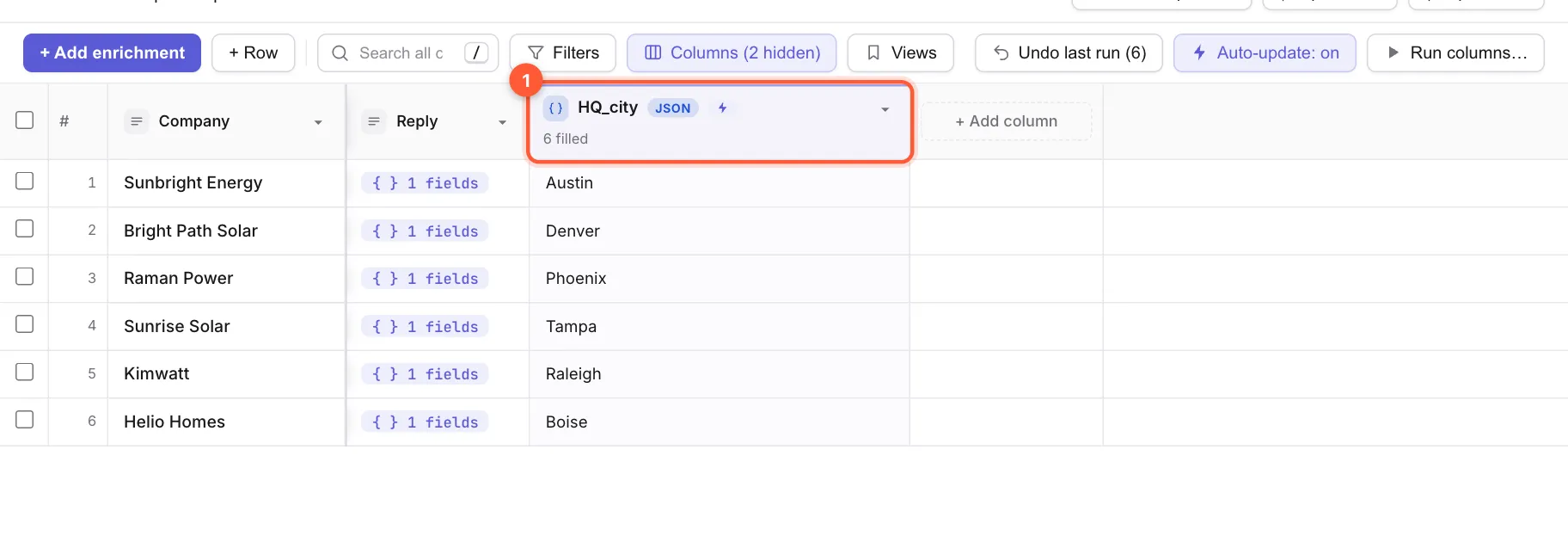
Click a reply cell in the table, find the field in the list that opens and click Add to column next to it. The path is filled in for you.
Look something up in another sheet
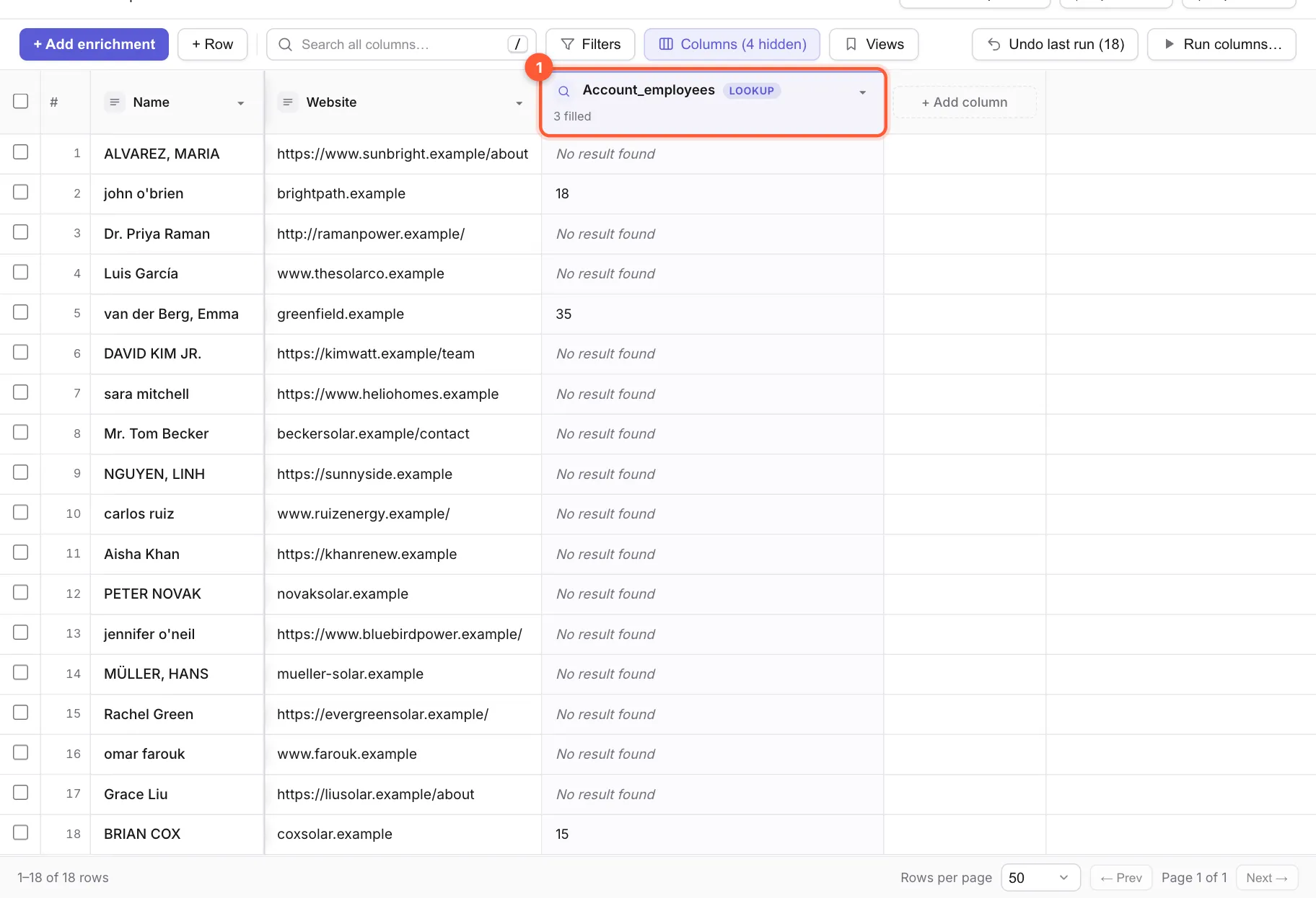
Say one sheet holds your leads and a second sheet, Accounts, holds facts about each company. Add a sheet (the + next to the sheet tabs), import ↓ sample-accounts-lookup.csv into it, go back to your leads and choose Lookup from another sheet. Choose 1 the sheet to look in, the column to match on and the value from this row to match with, then what to bring back: One column from the matching row, or how many rows match.
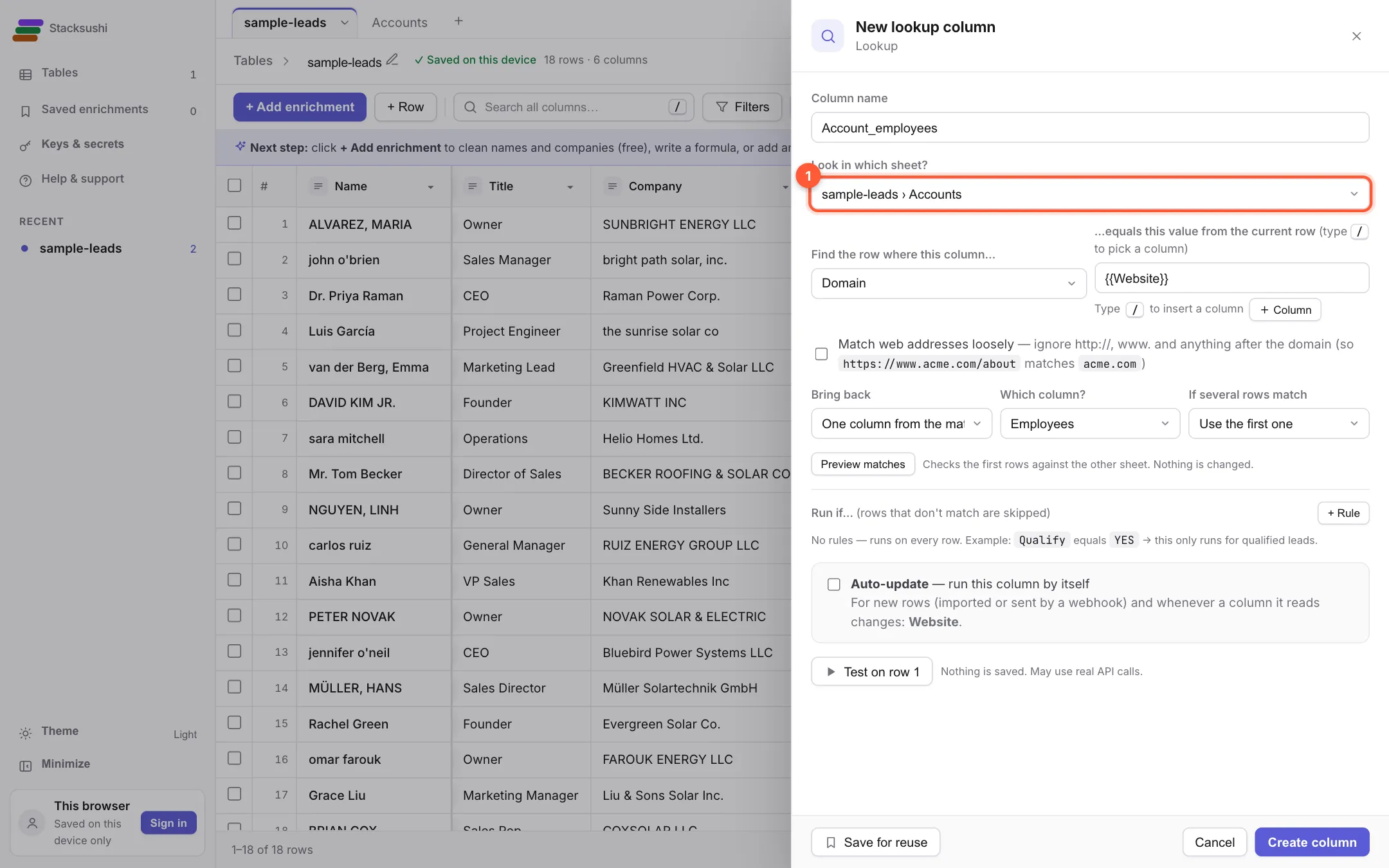
Only three companies matched. The others write the website a different way (https://www.brightpath.example/ against brightpath.example).
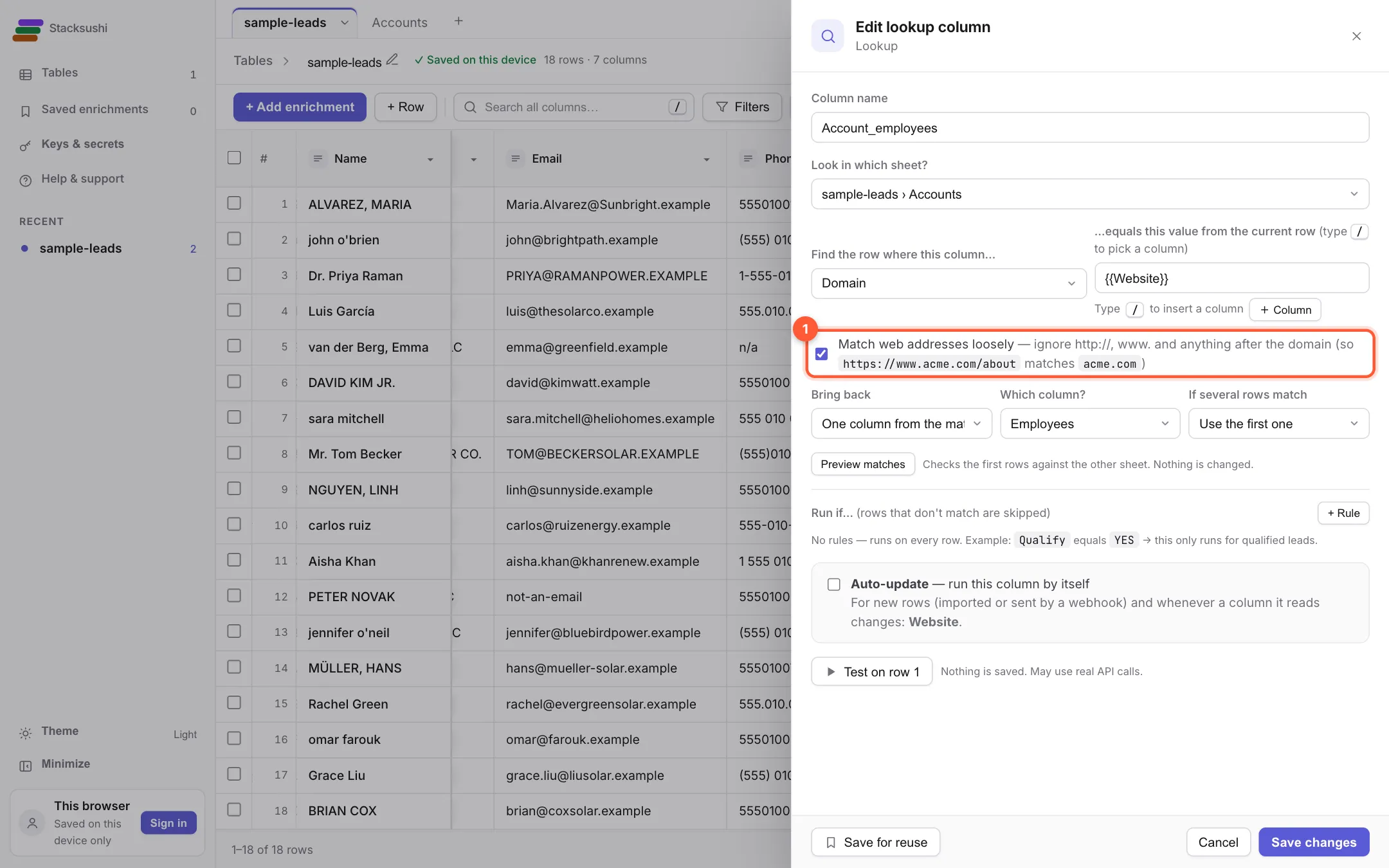
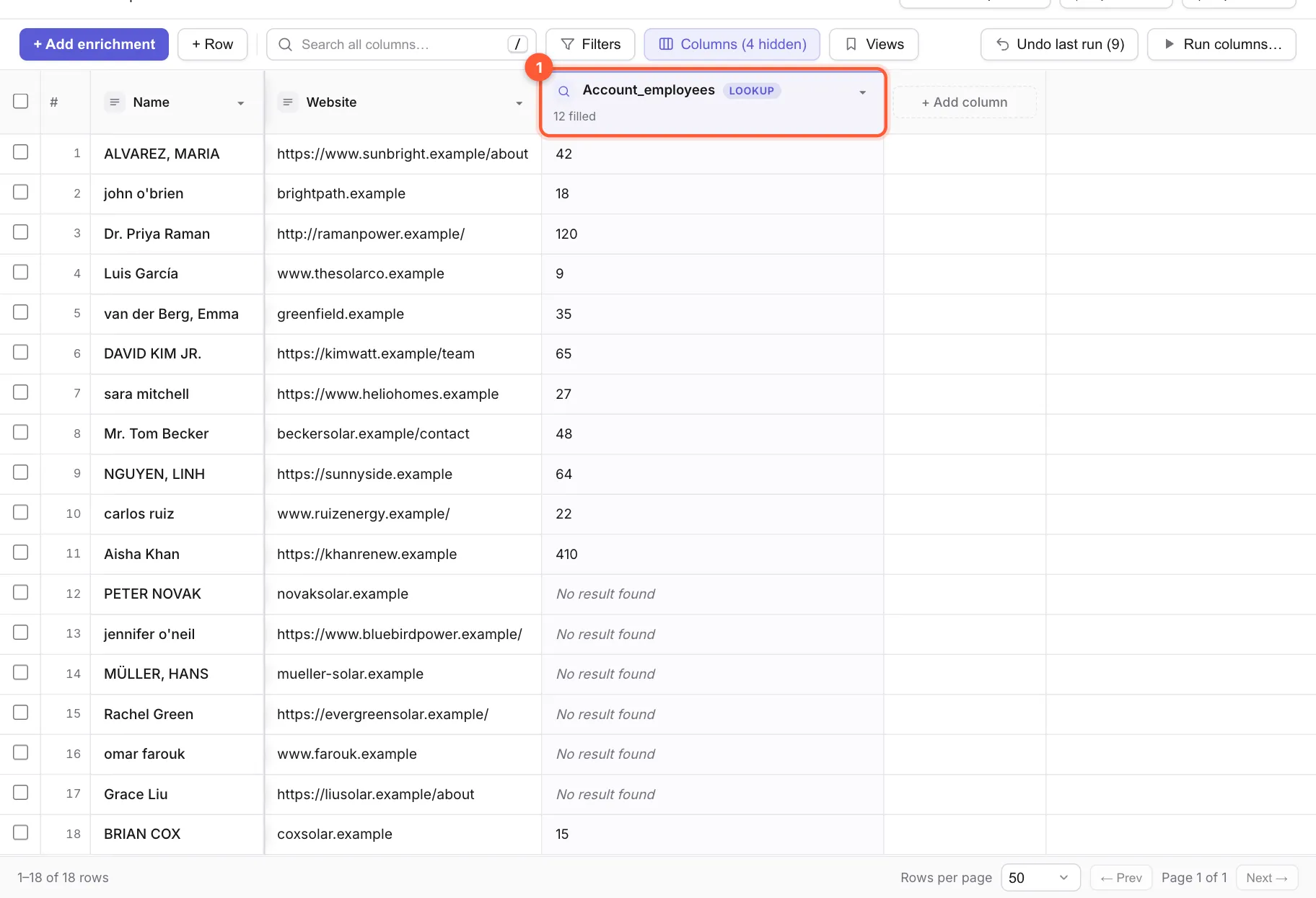
Open the column's Edit settings and tick 1 Match web addresses loosely. It ignores https://, www. and trailing slashes. Save, run the column again and more rows match.
Send a list to another sheet
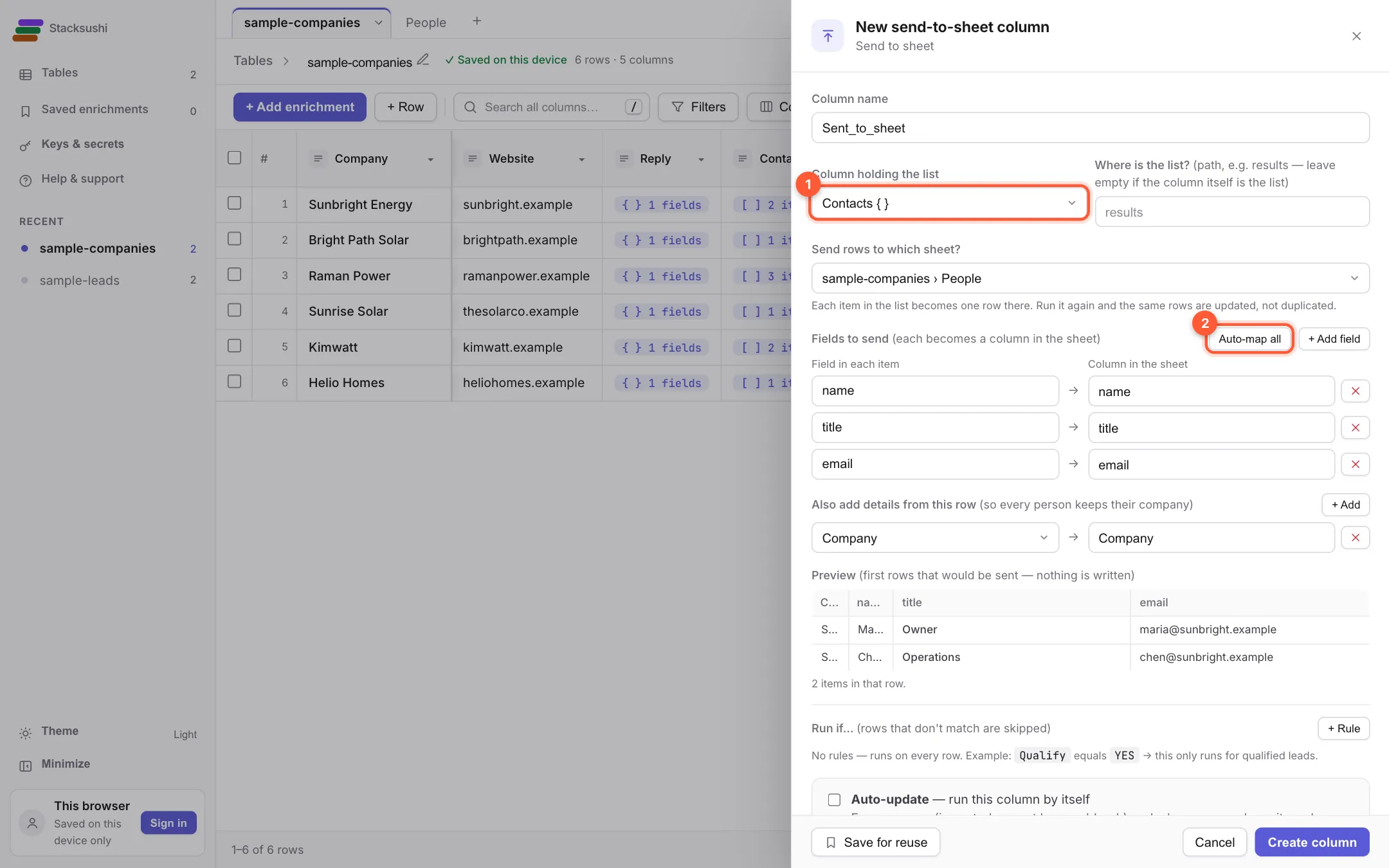
Sometimes one cell holds a list, for example ten people found at one company. Send to sheet turns each item into its own row in another sheet. Use the Contacts column of sample-companies.csv: 1 pick the column holding the list and the target sheet (or + New sheet in this table… and name it People), then 2 click Auto-map all. The sheet's columns are made from the fields in the list. Use Also add details from this row to carry the company along with every person.
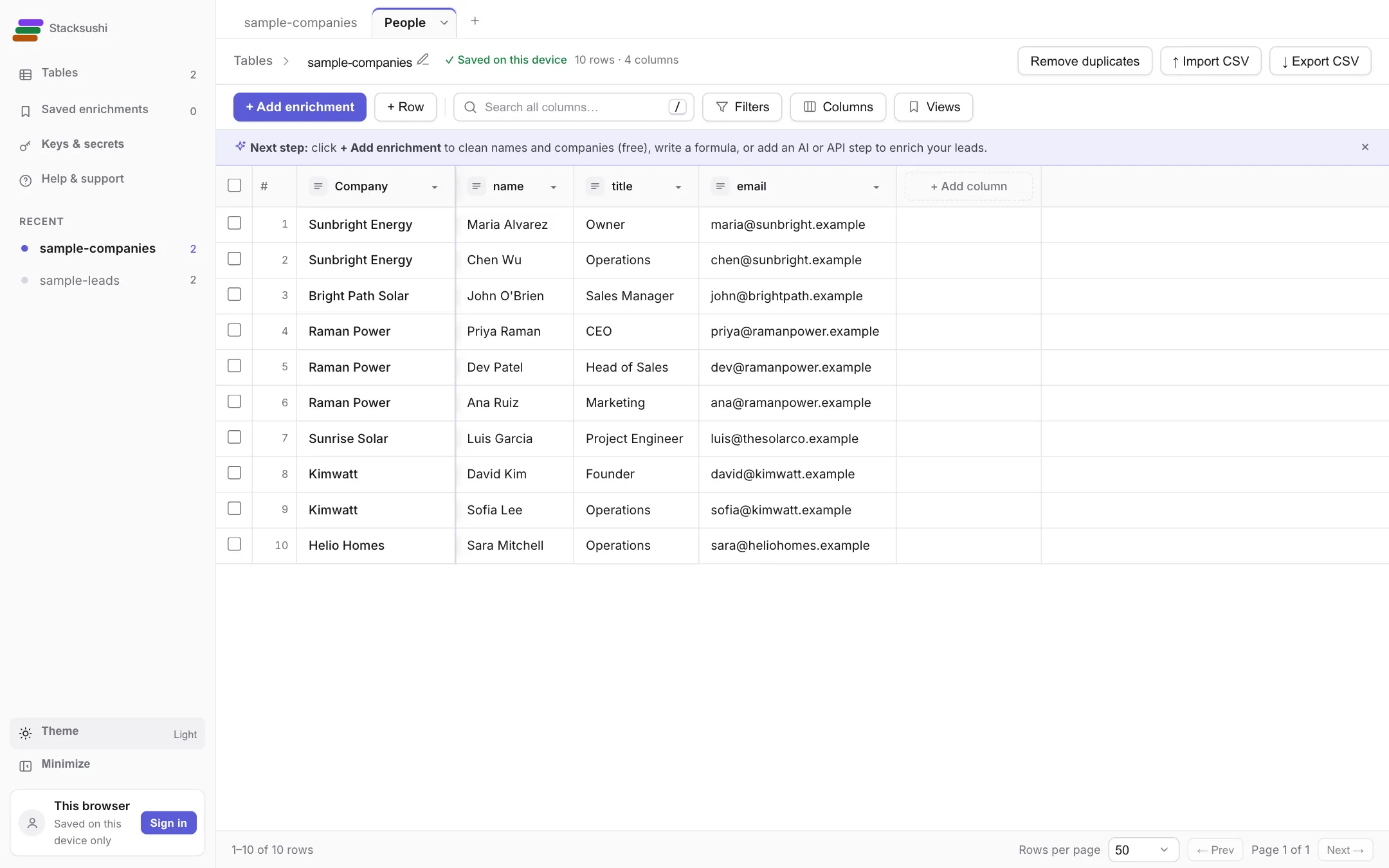
Tables can also receive new rows from outside, through a web address (a webhook). That needs an account, so it is not covered with pictures here.