Docs / Enrichments
Running columns
An enrichment column does nothing until it runs. This guide covers how to run it safely: test on one row first, choose which rows and cells to run, skip rows with a rule, fix cells that fail, undo a run, and make a column run by itself.
The examples use free Clean data columns on the sample list from Start here, so you can try every step at no cost. The same steps apply to AI and API columns, where each row can cost real money, which makes the habits here worth learning on the free ones.
Where to start a run
- When you create a column, the Run window opens straight away.
- Run columns… (top right) opens the window with every enrichment column ticked.
- Run this column… in a column's menu runs just that one.
- The ▶ that appears when you hover a cell runs that one cell.
Test on one row first
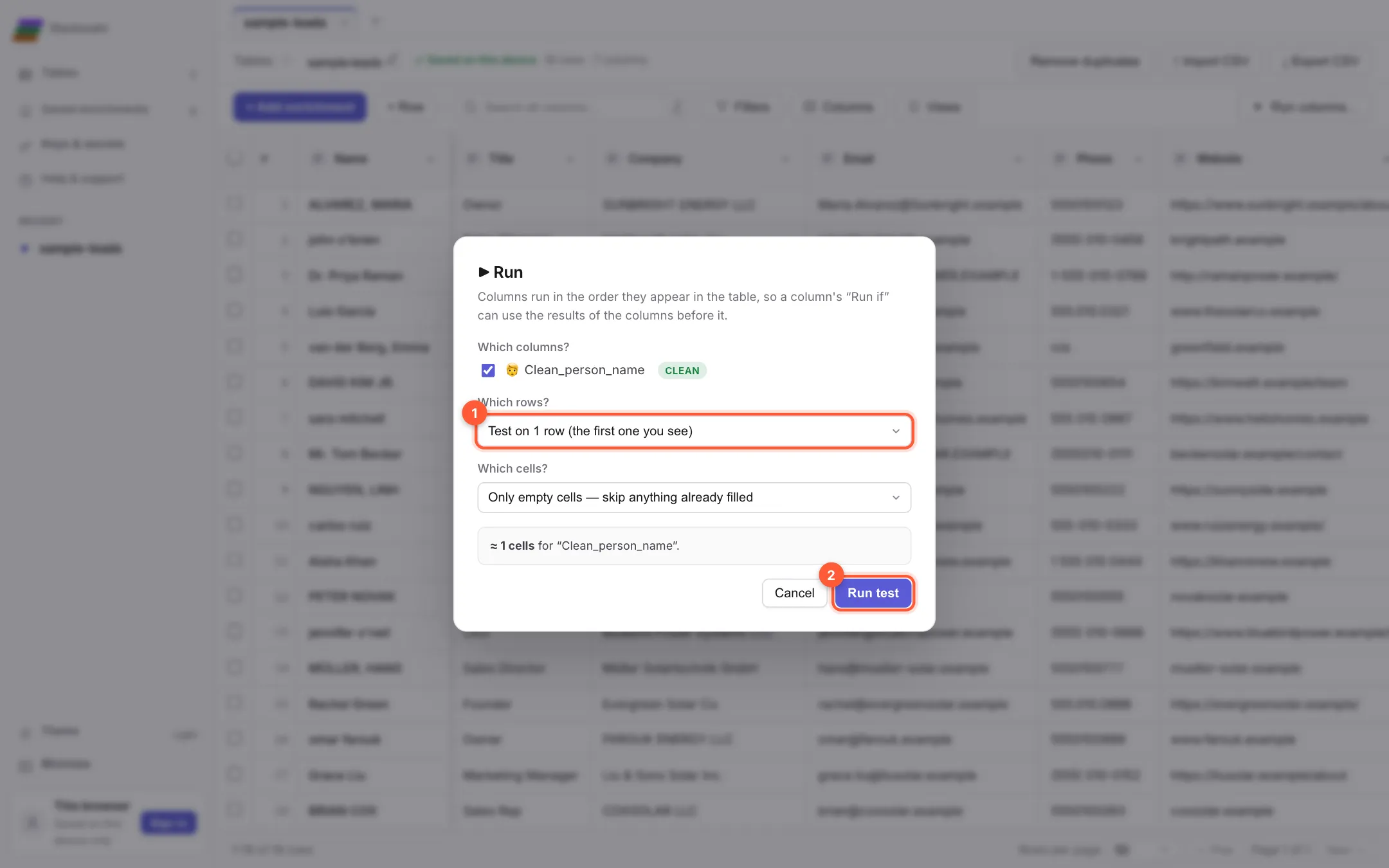
The Run window asks three things: Which columns?, Which rows? and Which cells? Under 1 Which rows? choose Test on 1 row and click 2 Run test. Only the first row you can see is processed.
The column's header now says 1 filled, and the row shows the result. If it looks right, run the rest. If not, change the column's settings and test again. Nothing else has been touched.
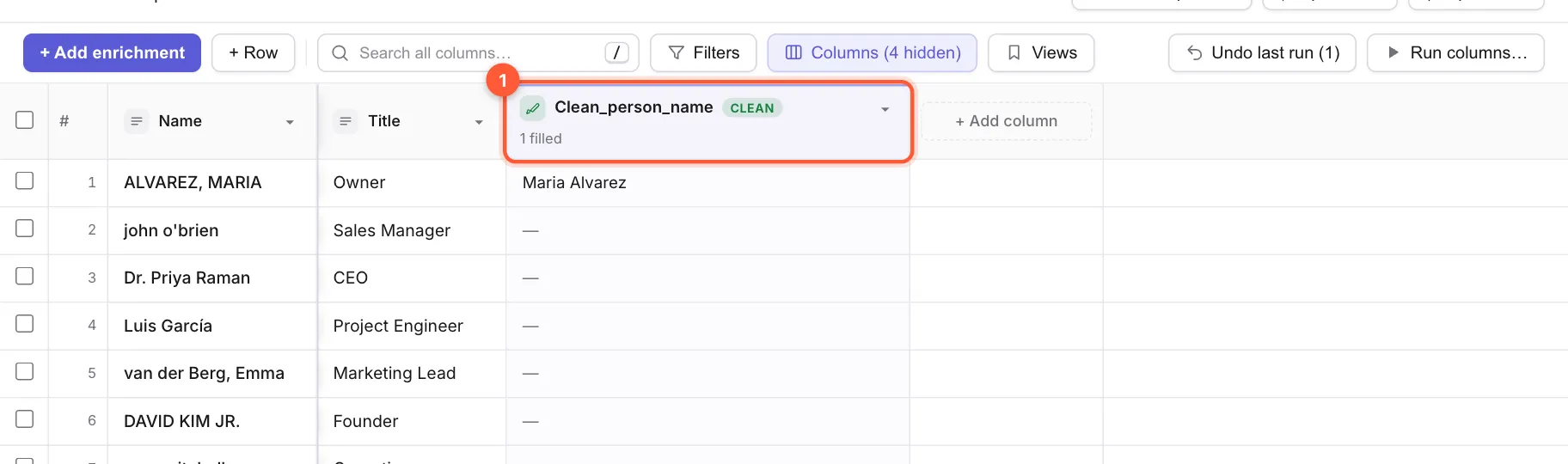
Testing on one row shows you the result and what one row costs before you spend on a thousand.
Choose which rows and which cells
| Which rows? | What it does |
|---|---|
| Test on 1 row | The first row you can see. |
| The first N rows | You type N. Good for a trial of 20 or 50. |
| Selected rows | Only the rows you ticked (see Tables and sheets). |
| All rows | Every row that matches your current search and filters. |
| Which cells? | What it does |
|---|---|
| Only empty cells | The default. Cells that already have a value are skipped, so running again never pays twice or overwrites good results. |
| Only cells that failed last time | Retries the red ones (see below). |
| Every cell | Runs everything again and overwrites existing values. |
A line at the bottom tells you how many cells will run, for example ≈ 18 cells for “Clean_company_name”.
Columns run in the order they appear in the table, so a column can use the results of the columns before it.
Run only when a rule is met
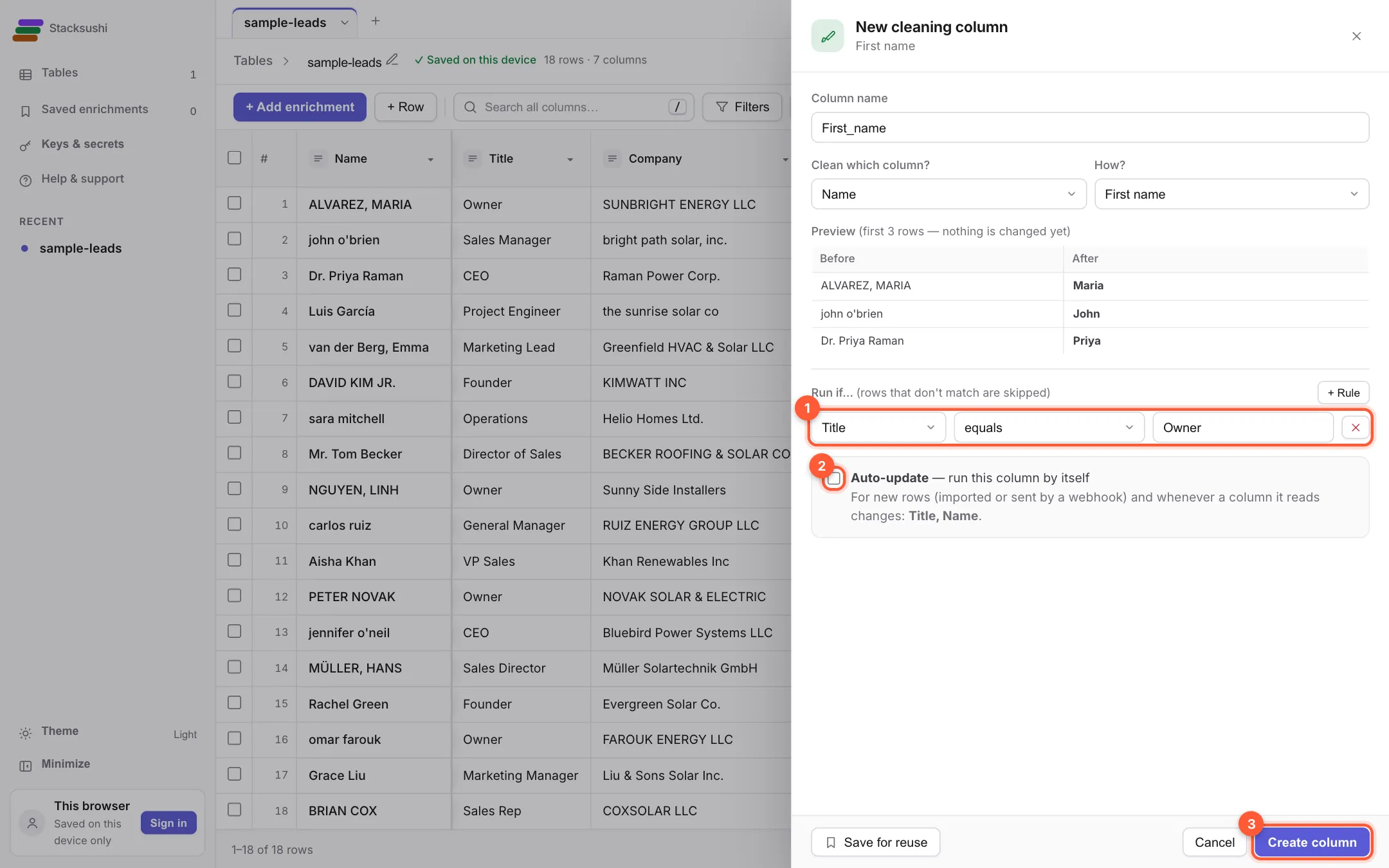
Not every row should be enriched. In a column's settings, under Run if…, click + Rule and describe which rows qualify. The rules work like filters: pick 1 a column, a condition and a value (here: Title · equals · Owner). With two or more rules you choose whether rows must match ALL or ANY of them.
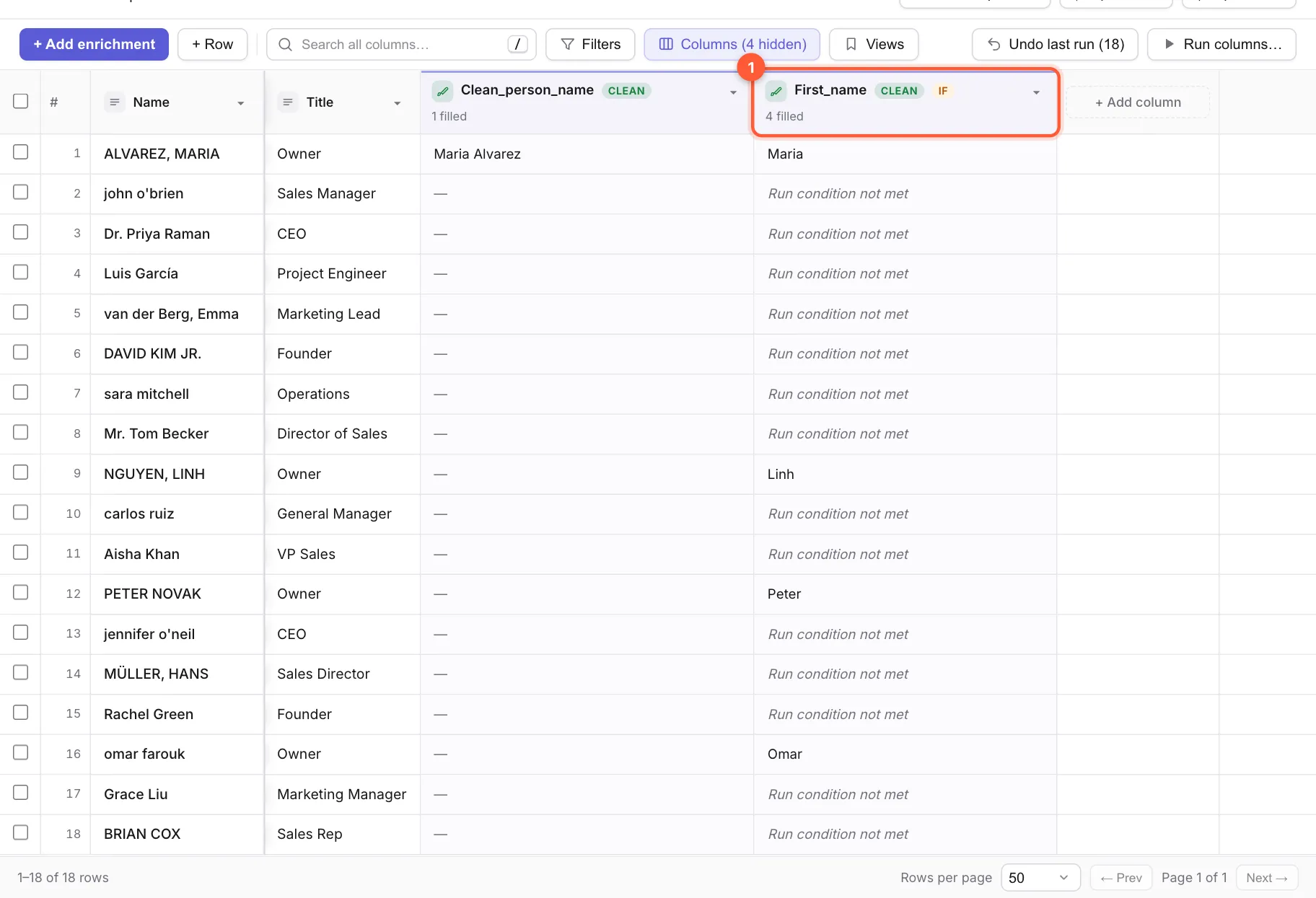
After the run, rows that don't match are skipped for free and say Run condition not met. Here four owners got a first name and the other 14 rows were skipped:
No result found: the step ran and found nothing for that row. Missing input: the column it reads was empty, so there was nothing to send. Neither is an error, and neither costs anything extra.
When cells fail
A cell that couldn't be filled turns red and shows why. The header counts them: 1 0 filled · 18 failed — retry. Here a JSON column was pointed at the Email column, which doesn't hold JSON:
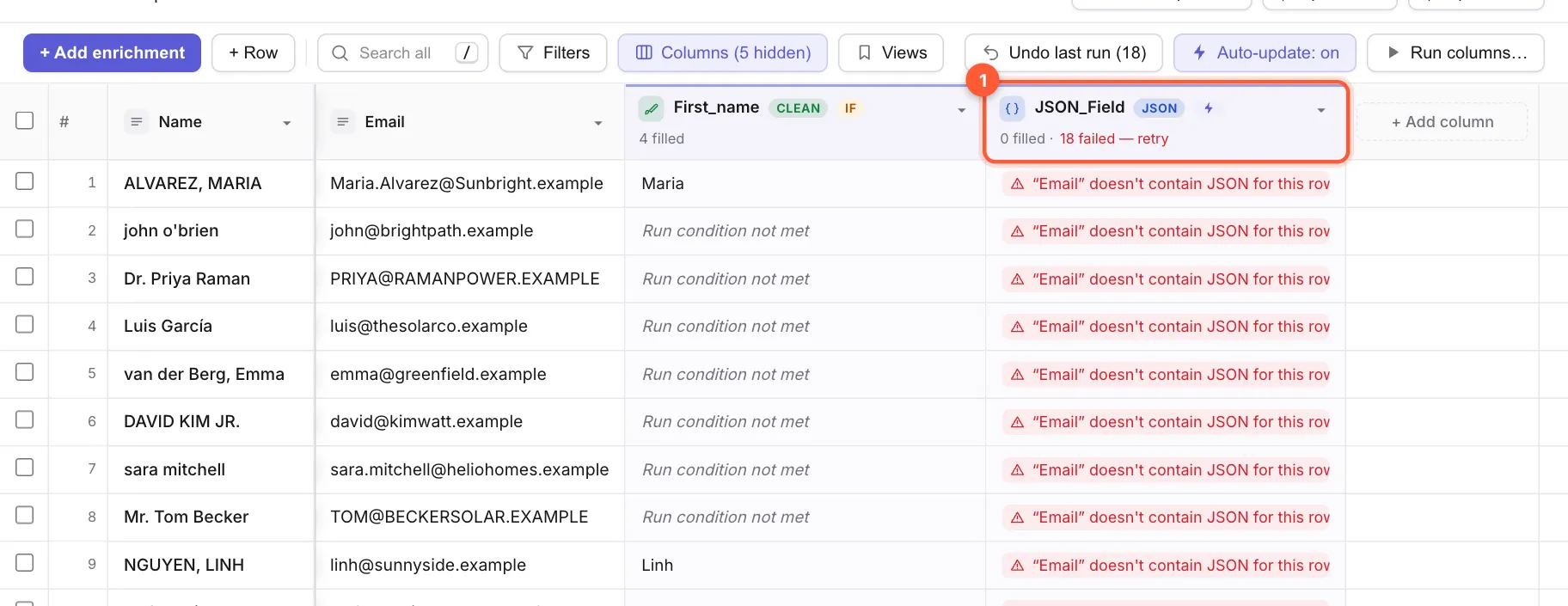
Click a red cell to open Cell details. It shows the full message, plus Run cell to try just that cell again and Edit to type a value yourself.
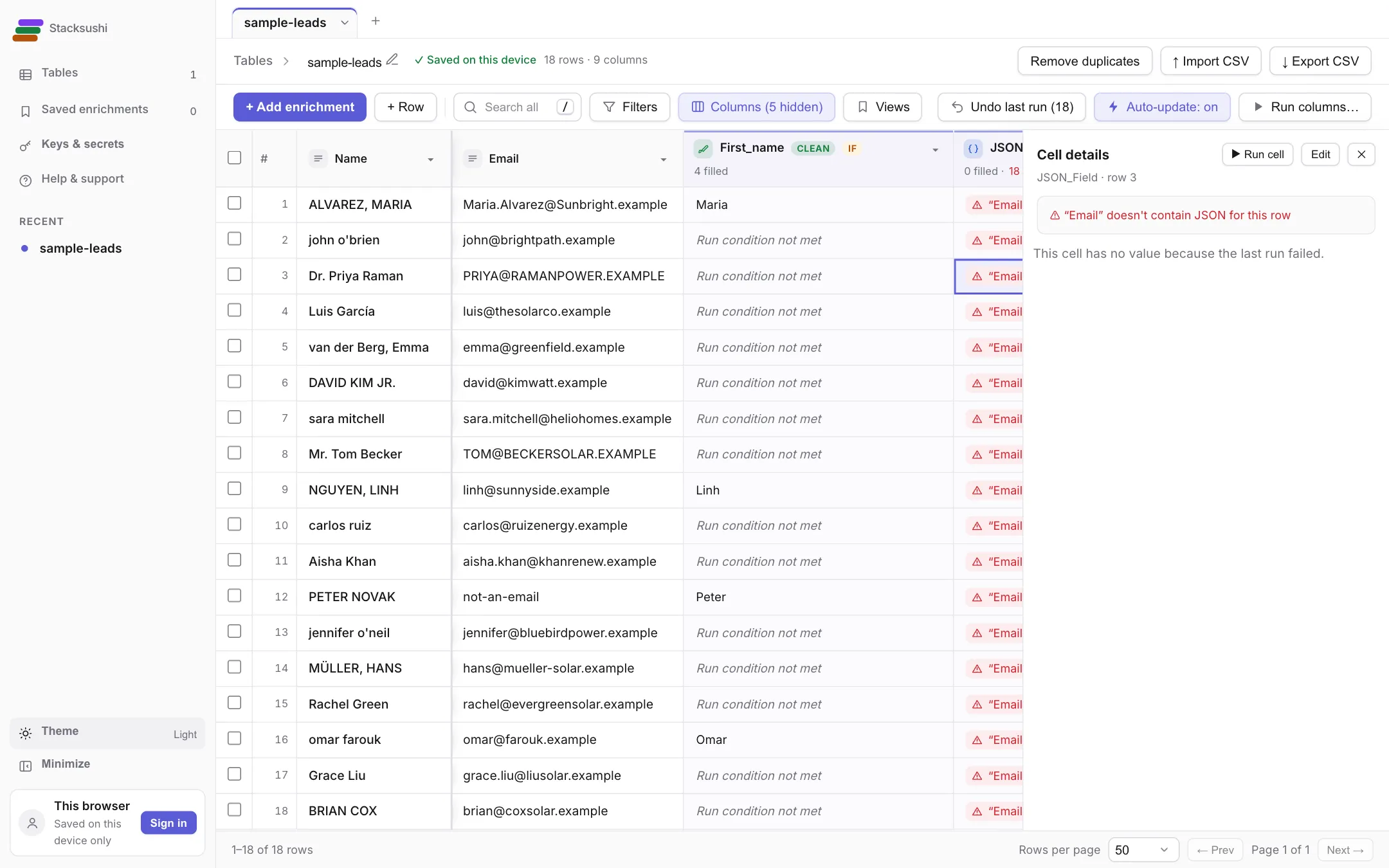
Fix the cause (here, choose the right column in the settings), then click retry in the header, or open the Run window and choose Only cells that failed last time. Temporary problems such as a busy provider are retried by Stacksushi on its own before a cell is marked failed.
Undo a run
Didn't like the result? Click 1 Undo last run at the top. The cells go back to how they were before that run, and the button shows how many cells it will restore, for example Undo last run (18). It undoes the last run only.
Let a column run by itself
Tick Auto-update (②, in the settings) and the column fills itself in for new rows (imported, or sent in by a webhook) and whenever a column it reads changes. Columns can chain: when A fills in, the column that reads A runs next.
Once any column has auto-update on, 2 Auto-update: on appears in the toolbar. Click it to pause everything and click again to resume.

- JSON field columns start with auto-update on, because they cost nothing. Every other kind starts off, because it may cost money.
- Once it's on, choose what happens when a column it reads changes: Keep existing answers (only fill empty cells) or Re-run and replace when an input changes. Free columns (like cleaning) replace by default. Paid columns (AI and API) keep their answers by default, so a change never makes you pay twice by surprise.
- A paid column uses your API key every time it runs by itself. If more than 100 cells would run at once, Stacksushi stops and asks: a box at the bottom of the table says Auto-update is waiting for your OK and shows how many rows it would run, with a button to go ahead and Not now. Smaller runs go ahead on their own.
Columns run by themselves while you have the table open in your browser. Close the tab and nothing runs; new rows that arrive meanwhile are filled in the next time you open the table.
Good habits
- Test on 1 row. Then run the first 20 or 50. Then run the rest.
- Keep Only empty cells unless you really want to overwrite.
- Use a Run if rule so you only pay for rows that qualify, for example only rows where the email is empty.
- Turn auto-update on for free steps first. For paid ones, switch it on after you have tested.