Docs / Your data
Tables and sheets
A table holds your leads: one row per lead, one column per detail. This guide covers the everyday jobs: bringing data in, changing it by hand, keeping related data on separate sheets, and cleaning up repeats.
The examples use the same sample list as Start here. Import it first if you want to follow along.
Your tables
The Your tables screen lists everything you have. Use 1 Import a CSV to make a table from a file, or 2 + New table to start empty. Each table has three buttons: 3 Open, Rename and Delete.

Deleting a table removes all its sheets and rows. Stacksushi asks you to confirm first, but there is no undo. Export a CSV if you might want the data back.
Add more data from a file
Inside a table, click Import CSV (top right). The new rows are added to the bottom; nothing is replaced. Columns are matched by name: a column called Email in the file goes into your existing Email column, and any name the table doesn't have yet becomes a new column. A message tells you what happened, for example Added 18 rows and 6 new columns.
- The file can be
.csv,.tsvor.txt. The first line must be the column names. - Tables with more than about 20,000 rows can feel slow in the browser. If yours is that big, split the file.
- Your plan has a row limit. If a file is too big for it, Stacksushi tells you before it saves anything and offers to import just the rows that fit.
Add a blank column for your own notes
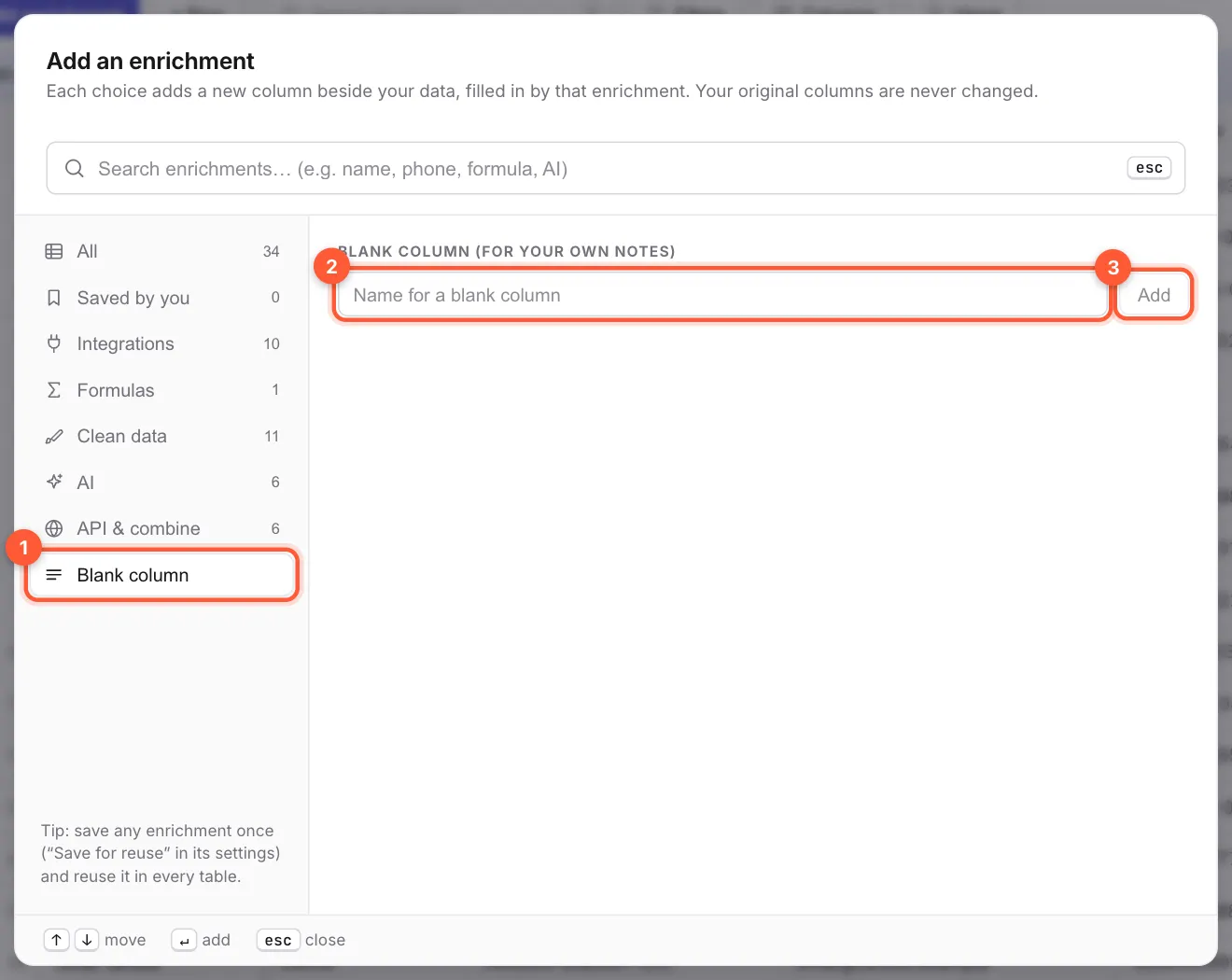
Click + Add enrichment, then choose 1 Blank column on the left. Type a name in 2 and click 3 Add. You get an empty column you can type in, handy for notes like "called, left voicemail".
Edit a cell, add a row
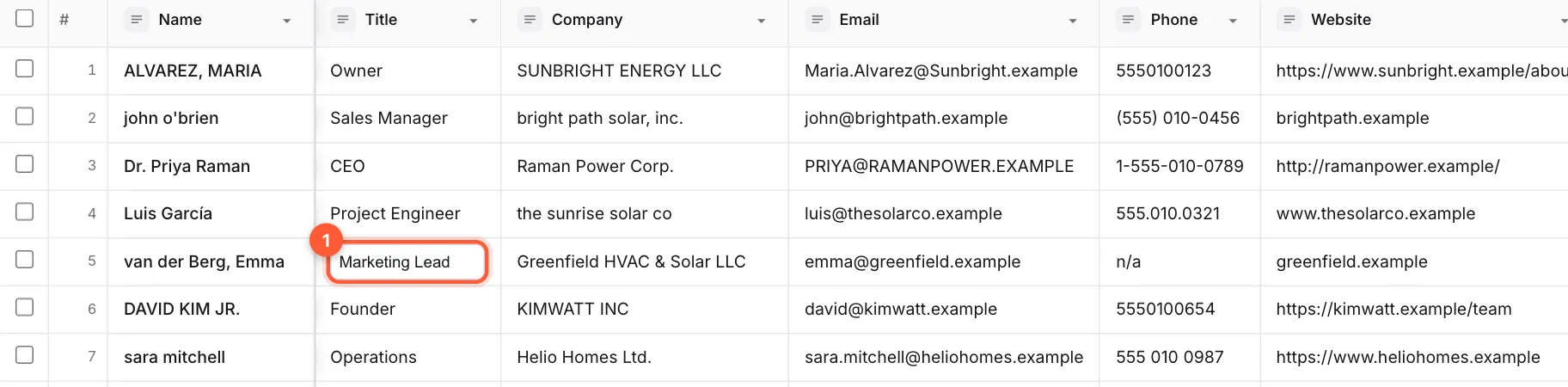
Double-click any cell to type in it. Press Enter to save, or Esc to cancel. To add a lead by hand, click + Row: an empty row appears at the bottom.
Select and delete rows
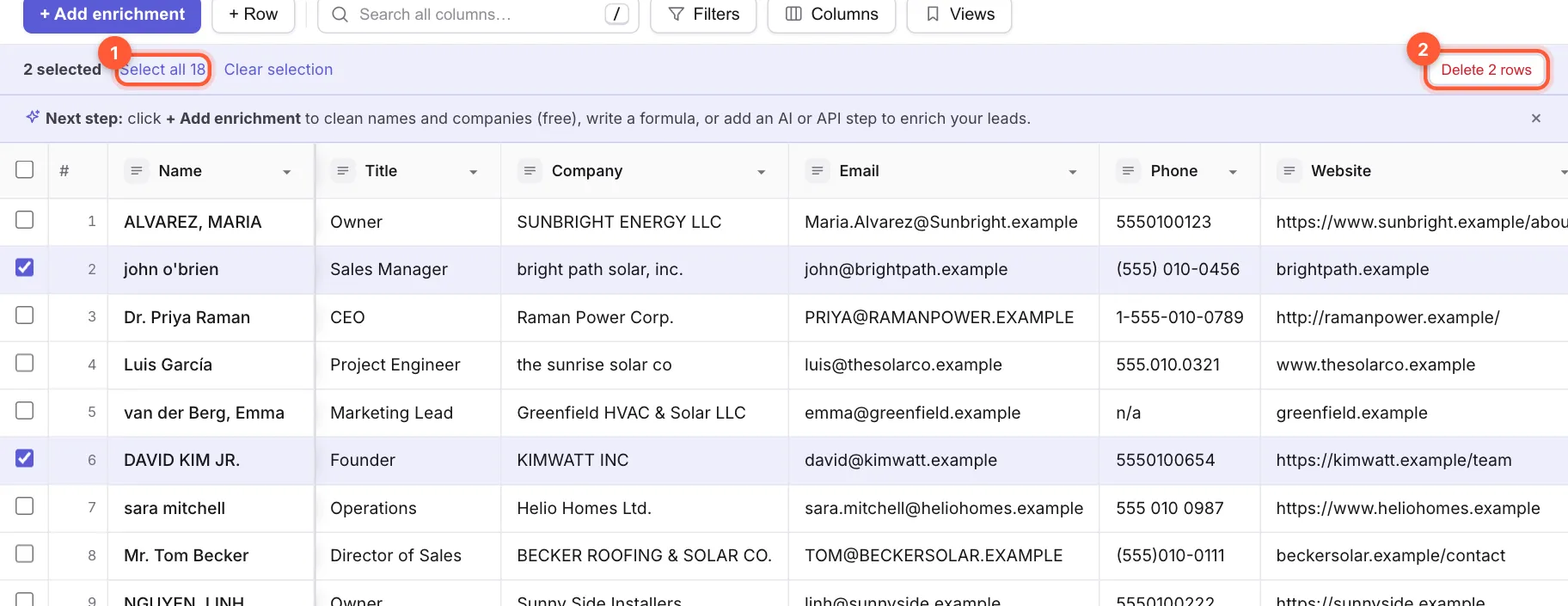
Tick the box at the left of a row to select it. A bar appears above the table: 1 Select all picks every row that matches your current search and filters (not only the ones on this page), and Clear selection unticks them. The box in the header selects just the rows on this page. Click 2 Delete to remove the selected rows. Selected rows are also the ones the Run window can target (see Running columns).
Work with a column
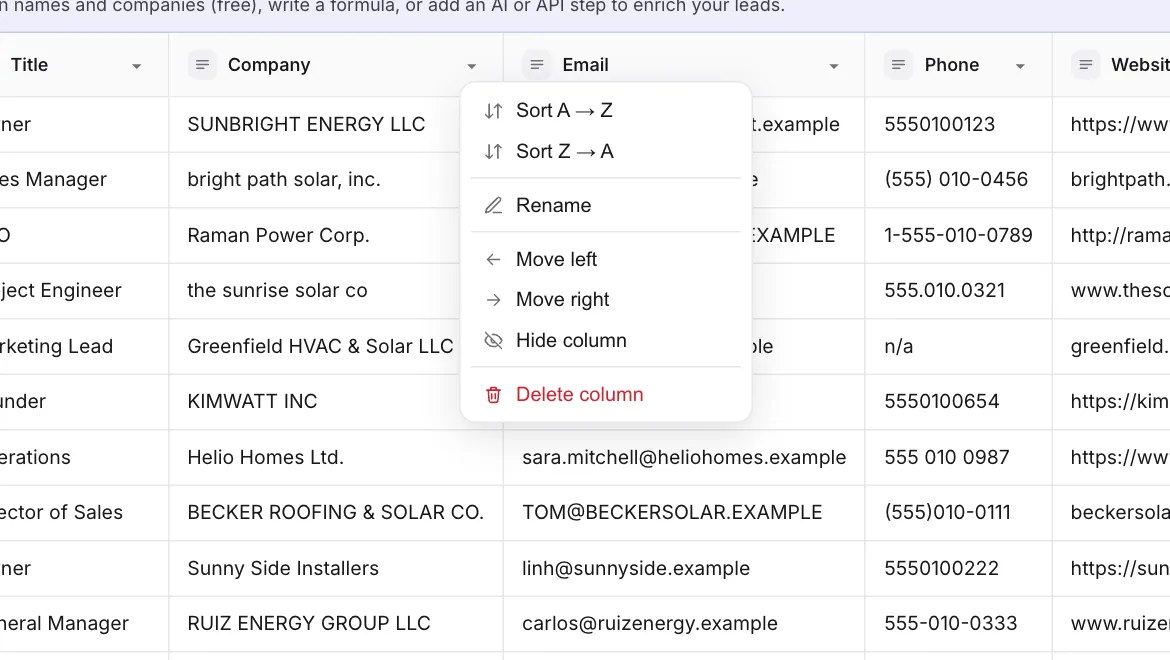
Click the small arrow in any column header to open its menu:
- Sort A → Z and Sort Z → A put the rows in order. Numbers are sorted as numbers and dates as dates when a column holds them (9 comes before 100).
- Rename changes the column's name.
- Move left and Move right change where it sits.
- Hide column hides it from view without deleting anything. Bring it back from the Columns button.
- Delete column removes it and everything in it. You are asked to confirm, and it can't be undone.
Keep related data on separate sheets
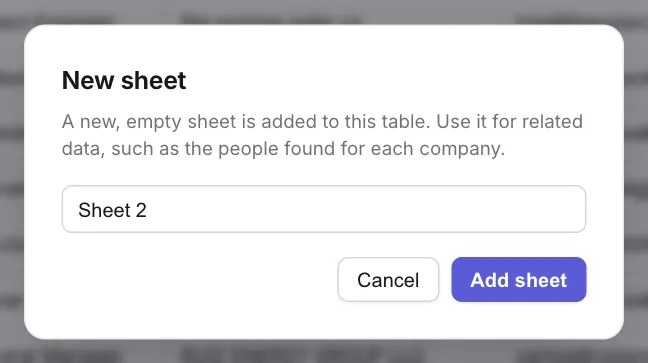
One table can have several sheets, shown as tabs along the top. Use a second sheet for data that belongs to the first, for example the people you find at each company. Click the + next to the tabs, give the sheet a name and click Add sheet.
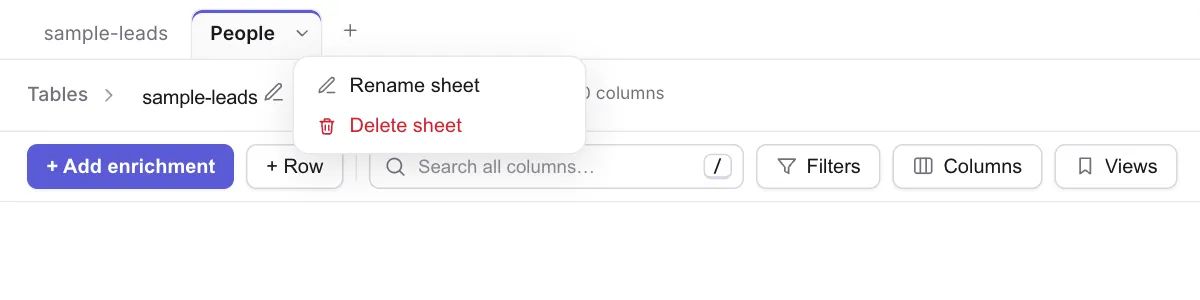
To rename a sheet, double-click its tab. The small arrow on the tab opens a menu with Rename sheet and, once you have more than one sheet, Delete sheet. Deleting a sheet removes its rows for good, and the other sheets are not touched.
Remove duplicates
Imported the same file twice, or merged two lists? Click Remove duplicates (top right). Choose the column that identifies a lead, usually 1 Email, and click 2 Remove duplicates. For each value the first row is kept; capital letters and extra spaces are ignored; rows where that column is blank are never removed.
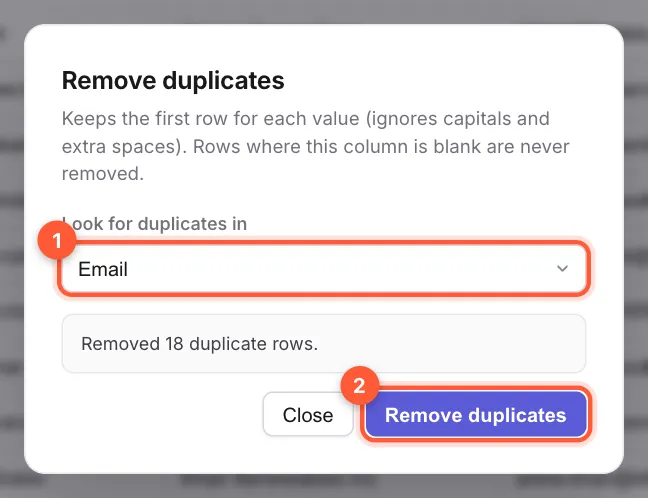
Unlike deleting rows, Remove duplicates acts as soon as you click it. If the list matters, export a CSV first.
Export
Export CSV (top right) downloads the rows you are looking at, with every column, including the ones made by enrichments. If you have a filter on, you get only the filtered rows. See Start here for the button.