Docs / Enrichments
Integrations
Integrations are ready-made enrichments for services that find or check data. You bring your own account and API key with each service. Stacksushi sends the request, shows the answer and puts the fields you pick into columns.
Available now: Apollo (search people, enrich a person and find an email), Findymail, Prospeo (find emails), MillionVerifier (check an email) and Apify (run an Actor). The pictures use Apollo with made-up data and a stand-in service, so nothing real was called and no credits were used. Your own results will differ.
You pay the provider for its own credits, on your account with them. Stacksushi also counts one of your Stacksushi API credits for each request that gets an answer (see Plans and credits). Test on one row before you run a long list.
Pick an integration
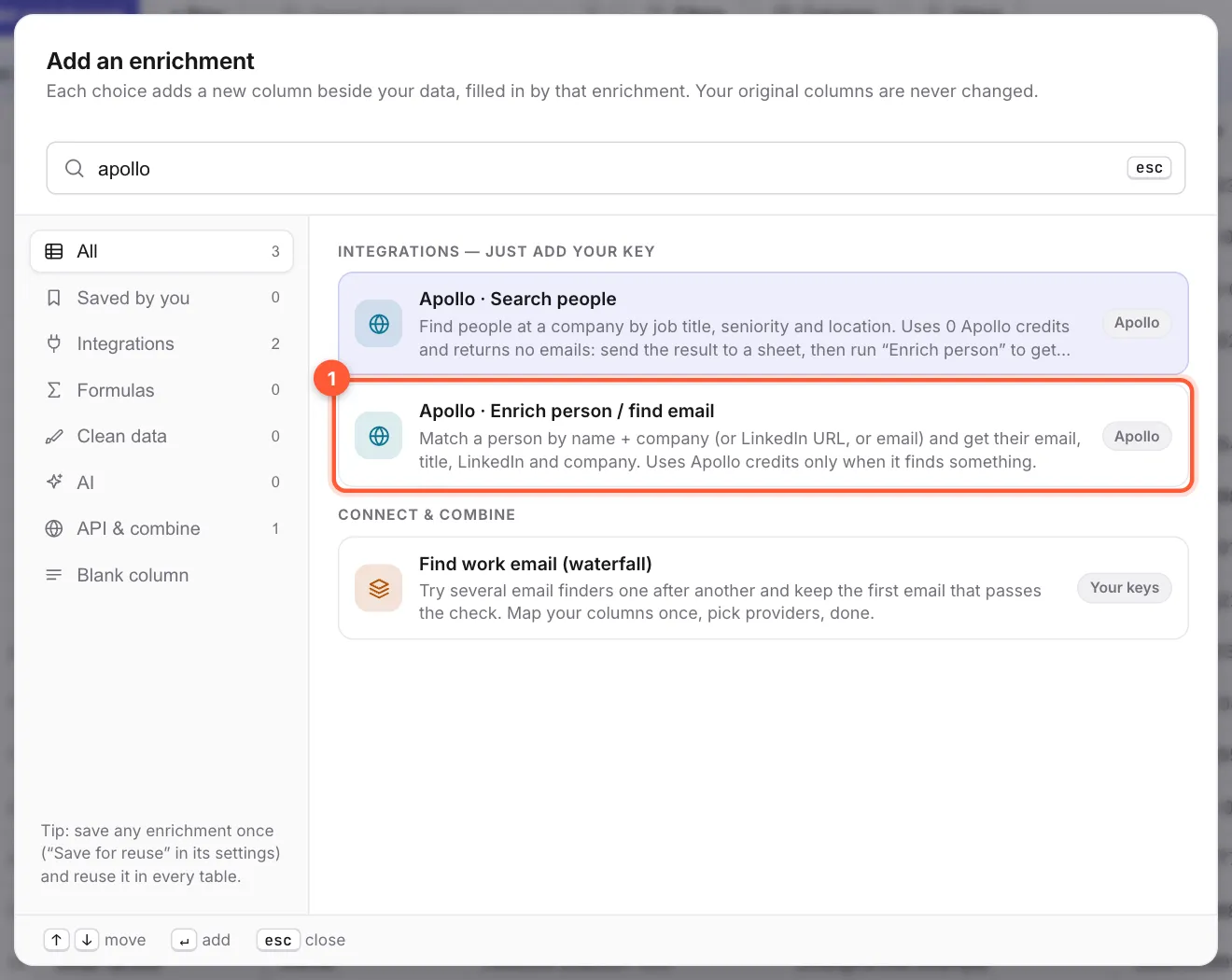
Click + Add enrichment and choose Integrations, or type a name in the search box. Choose 1 the one you want. Here it is Apollo's Enrich person / find email.
Add your key
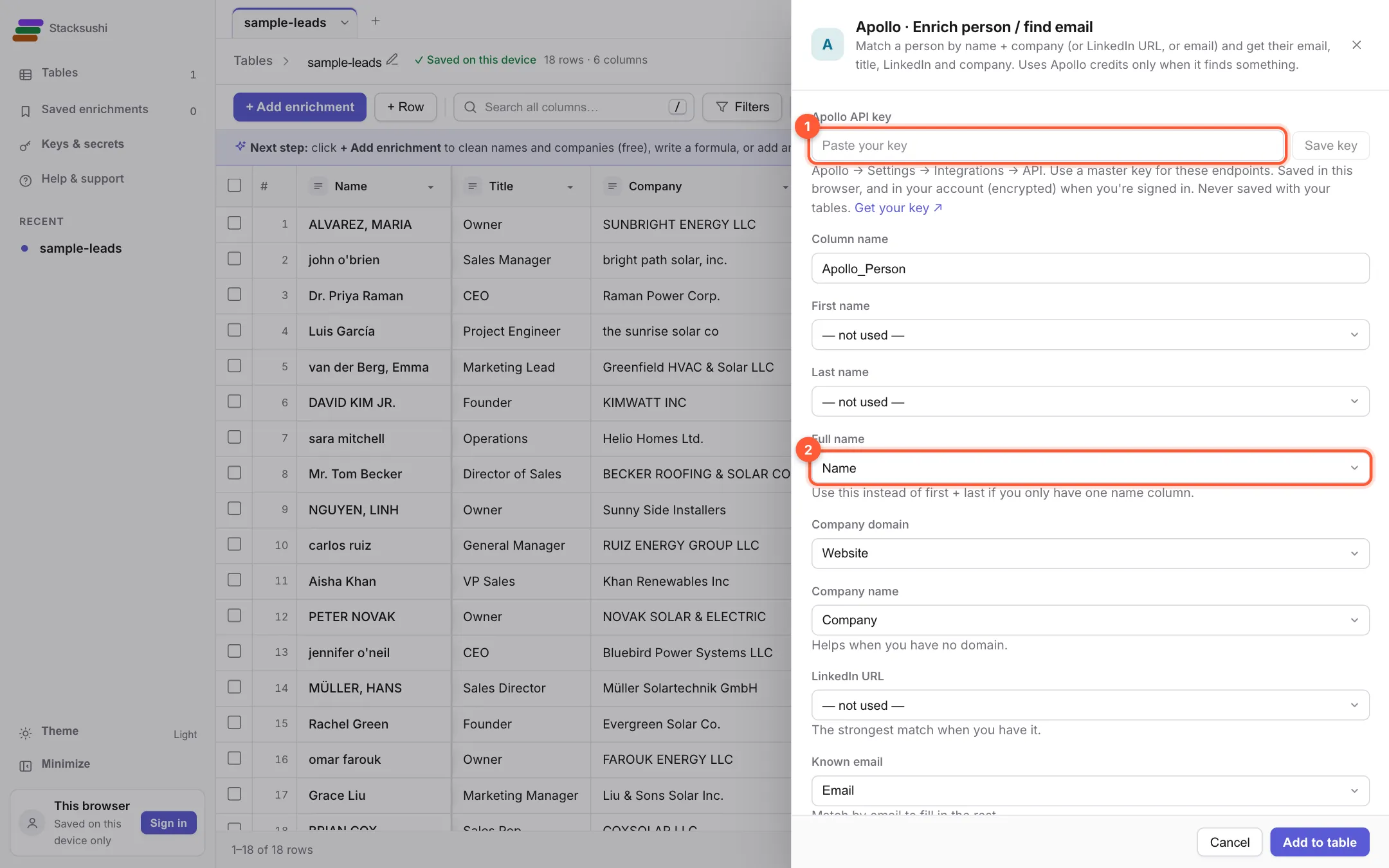
The first time, the top of the settings asks for 1 the provider's API key. Paste it and click Save key. The Get your key ↗ link goes to the page on the provider's own site where the key is made. Your key is saved in this browser, and also in your account, encrypted, when you are signed in. It is never saved with your tables. After that the settings say key saved with a change link.
Then tell it where the data is. Each box has a drop-down of your columns, for example 2 Full name. Boxes marked * are required, the others are optional. The more you give, the better the match: a name and a company website is a good start, a LinkedIn address is better.
Test on row 1
Before adding the column, click 1 Test on row 1. It makes one real request for the first row and shows the raw answer. Nothing is added to your table. Use Show the request that was sent underneath to check what went out (your key is hidden).
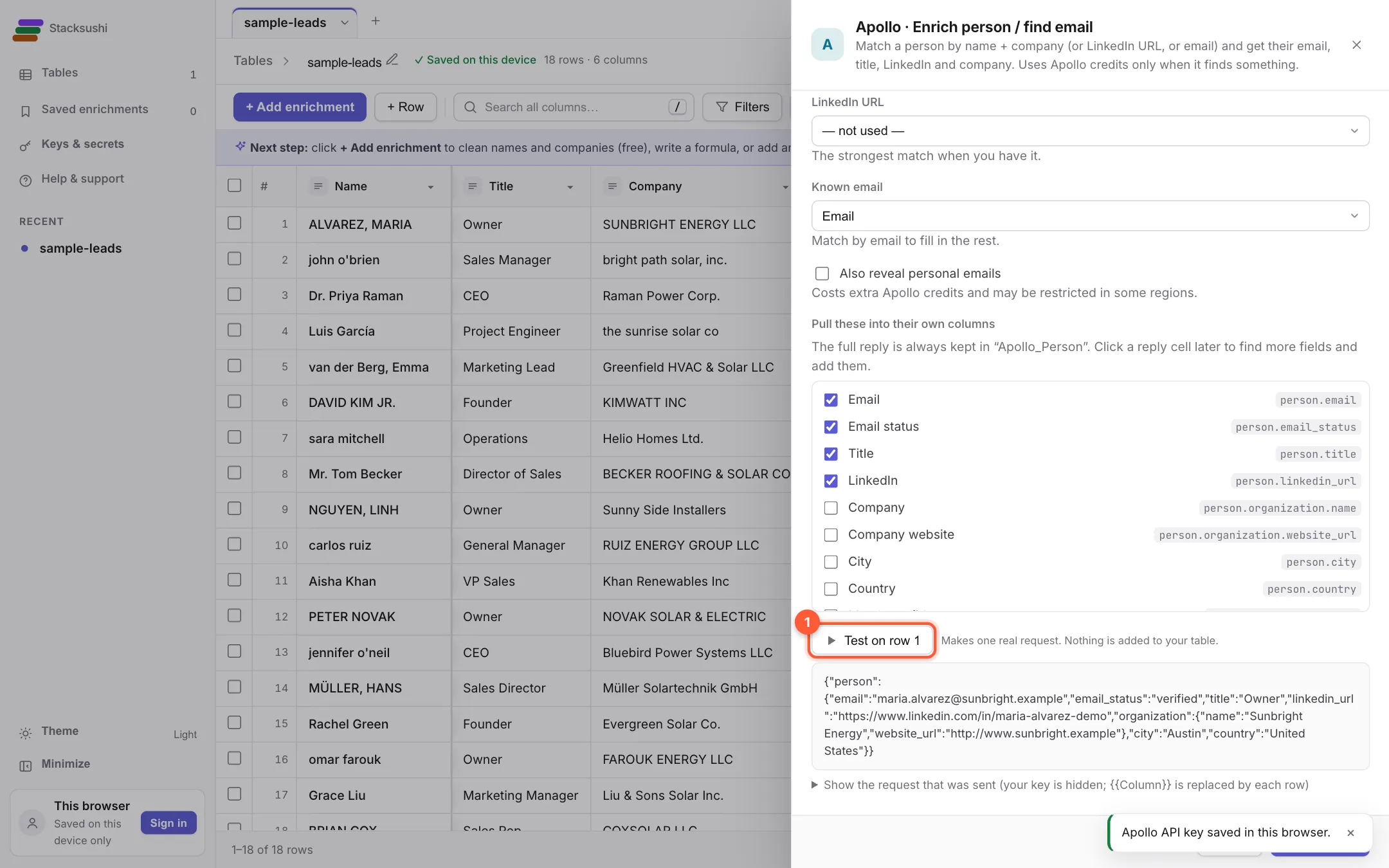
Under Pull these into their own columns tick the fields you want as columns, such as Email, Email status, Title and LinkedIn. The full answer always stays in one column, and you can add more fields later by clicking a cell.
Add it and run it
Click Add to table. The Run window opens: test on one row, or the first few, then the rest (see Running columns). Rows with nothing to look up show No result found. They are not an error. Whether a provider charges for a search that finds nothing is up to that provider, so check theirs.
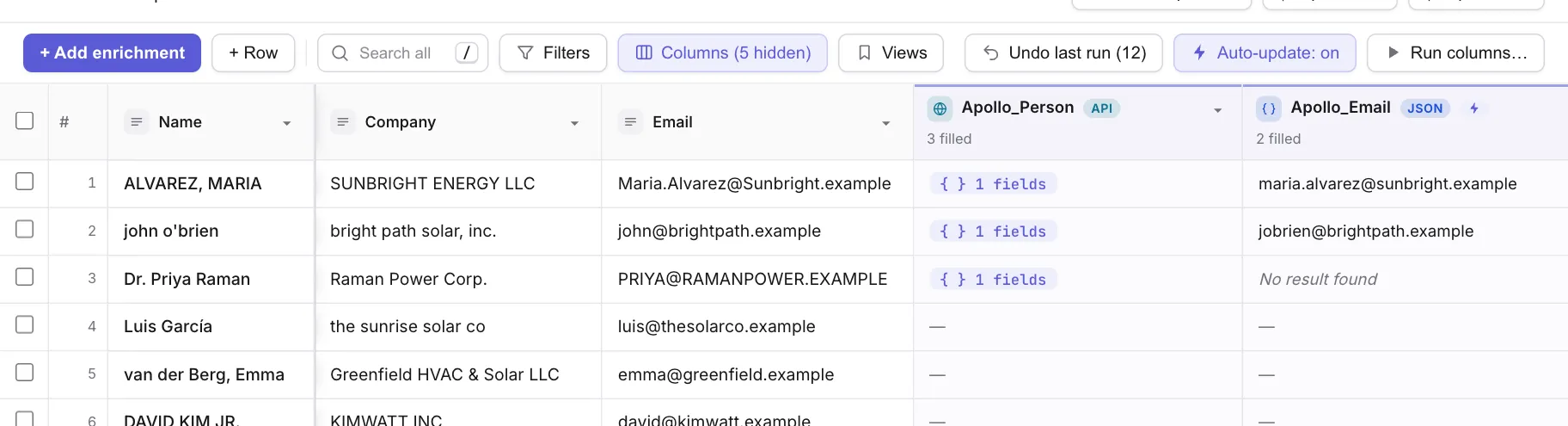
If one provider does not find everyone, use Find work email waterfall to try several in order and check the result.