Docs / Enrichments
Find work email waterfall
No single email finder knows everyone. A waterfall asks one provider, and only when it finds nothing asks the next. You can also have each answer checked, so a bad address is thrown away and the next provider gets a turn.
You need your own key for each provider you use (Findymail, Prospeo, Apollo) and, for checking, MillionVerifier. See Integrations for how keys work. The pictures use made-up people and stand-in providers, so no real calls were made and the results are only an example.
Every provider the waterfall tries can use one of your provider credits, and so can the checker. Each request also uses one Stacksushi API credit (see Plans and credits). Providers are tried in order and the waterfall stops at the first good answer, so a good first provider costs the least. Test on a few rows first.
Start the waterfall
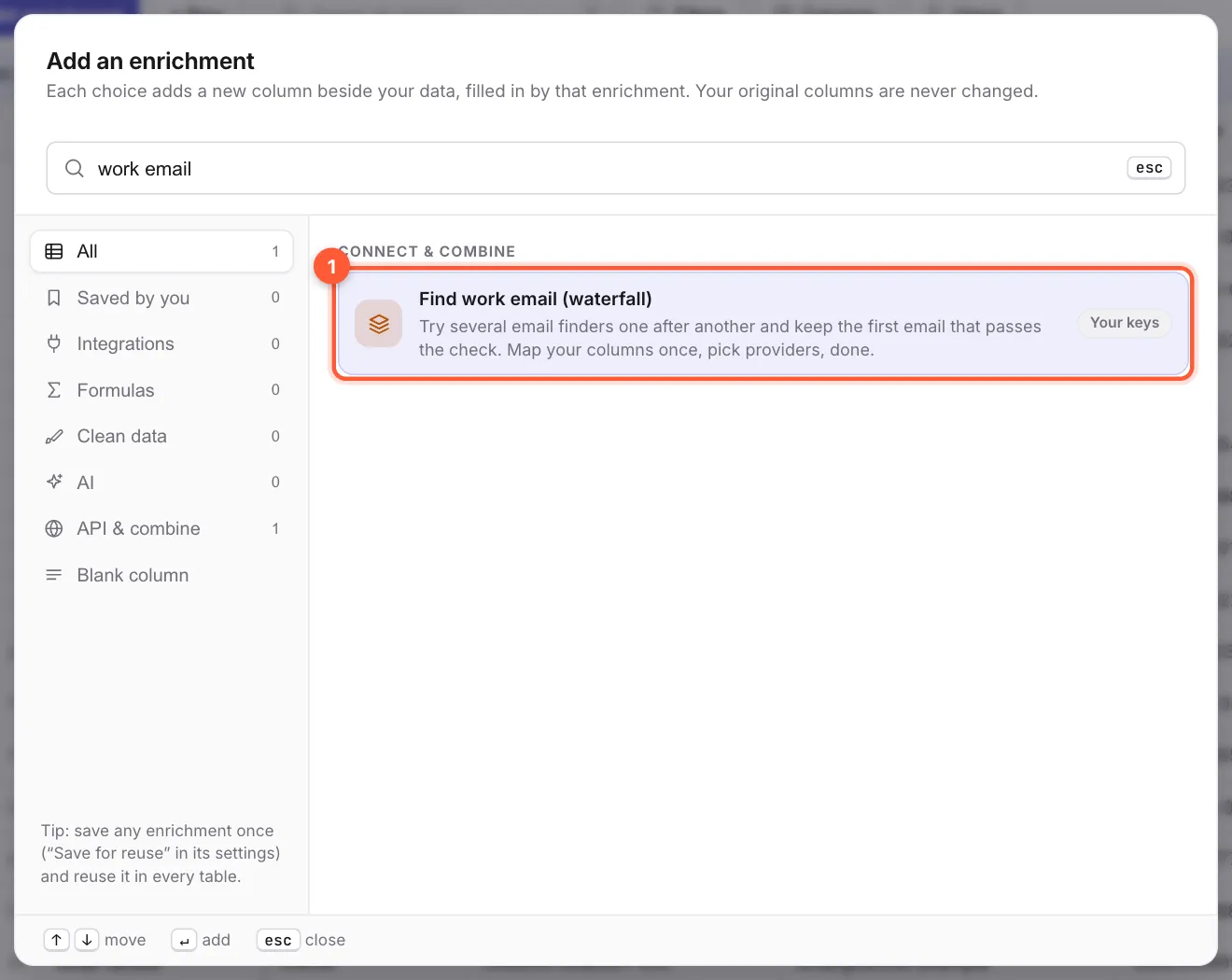
Click + Add enrichment, type work email and choose 1 Find work email (waterfall). The other one, 2 Waterfall (advanced), lets you build every step yourself.
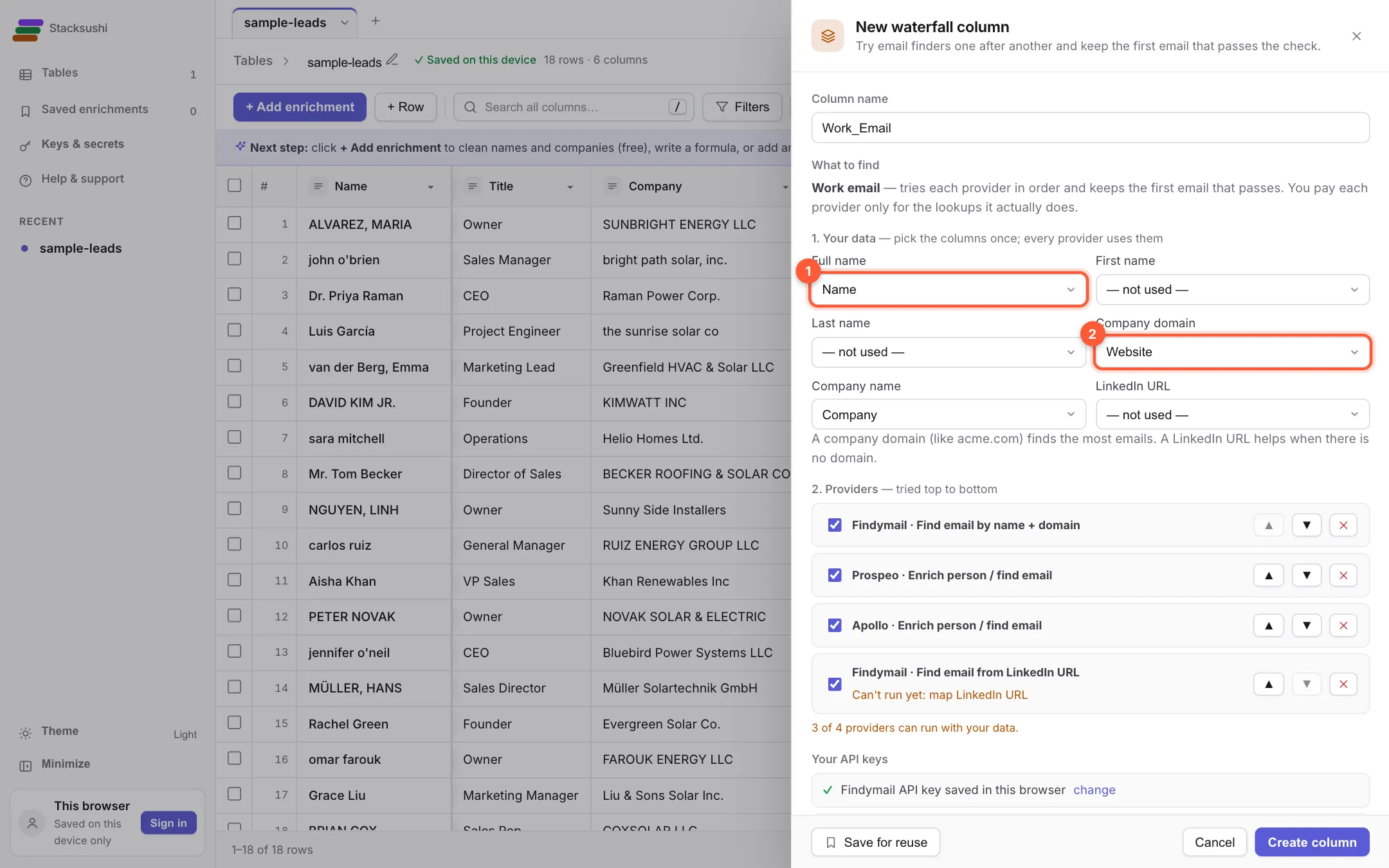
1. Your data
Tell it which columns hold the person's name and their company's website, using 1 Full name and 2 Company domain. Stacksushi guesses them from your column names, so check they are right. A LinkedIn address helps providers that can use it.
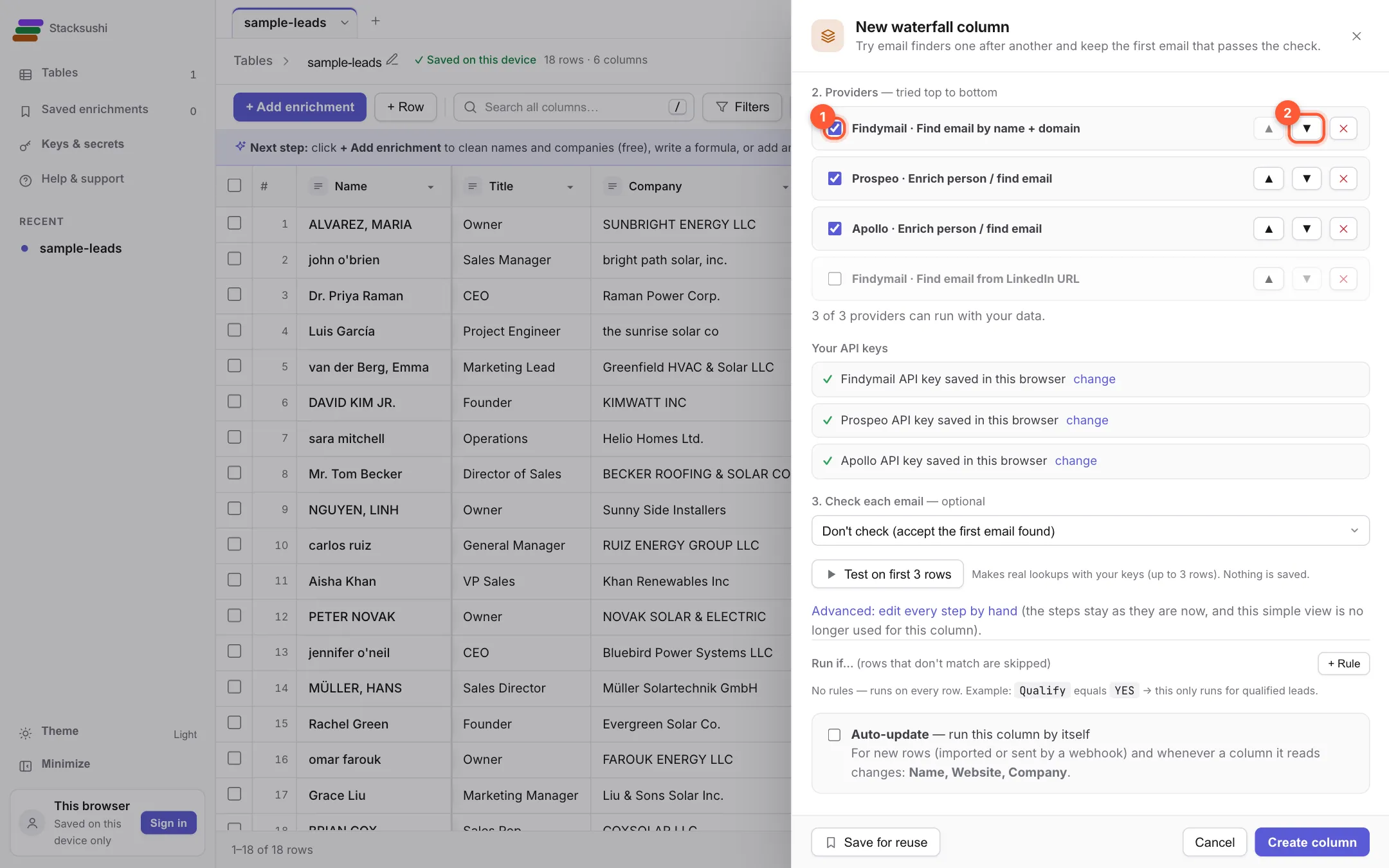
2. Providers and their order
Tick 1 the providers you have keys for. Use the 2 arrows to change the order. The first one ticked is asked first. Put the one that is cheapest, or best for your market, on top. Providers without a saved key ask for it in place.
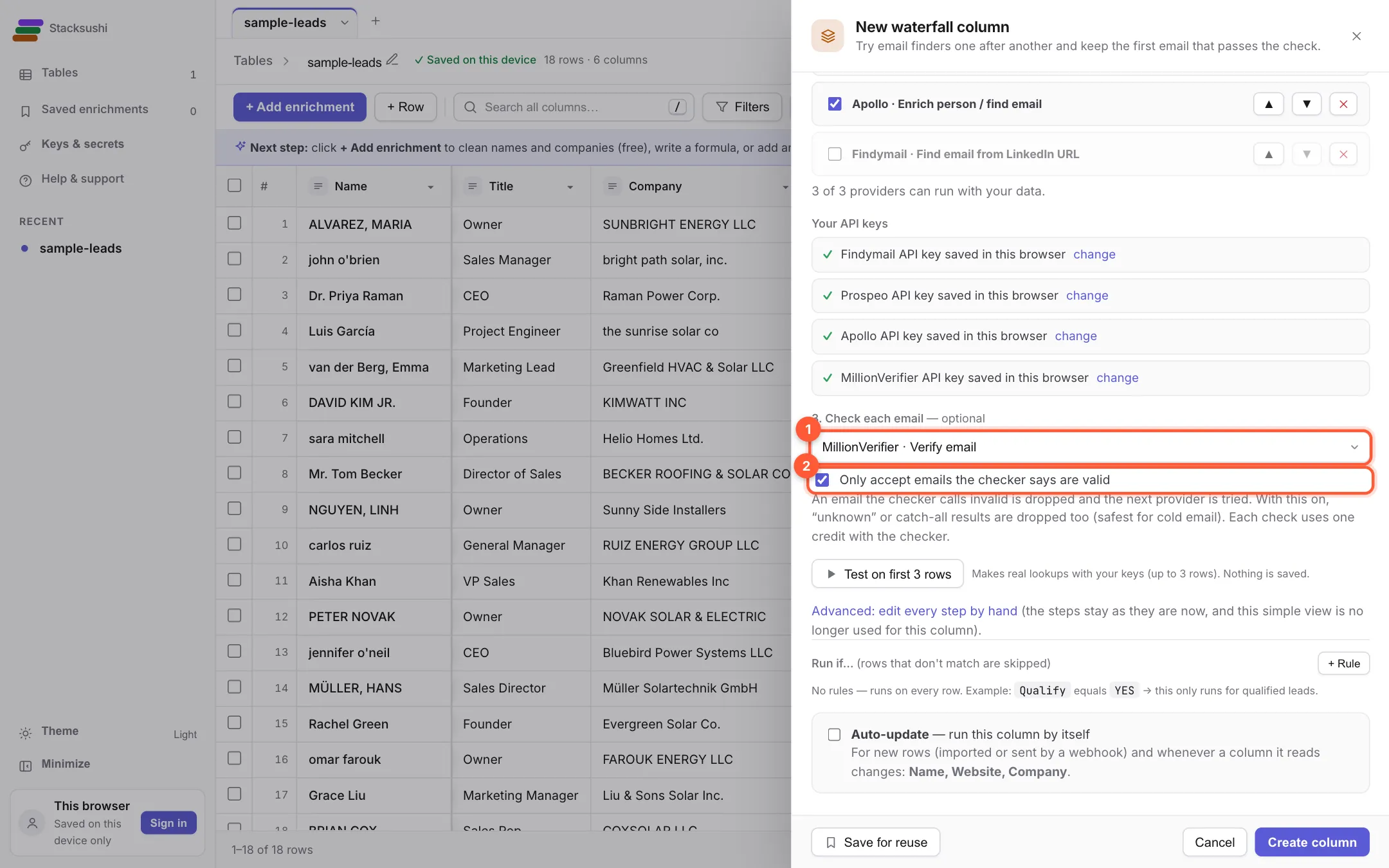
3. Check each email
Choose 1 an Email checker, for example MillionVerifier. With 2 Only accept emails the checker says are valid ticked, an address that fails the check is not kept and the next provider is asked instead. With it unticked, the first address found is kept and the checker's verdict is shown beside it. Leave the checker empty to skip checking.
4. Test on three rows
Click Test on first 3 rows. It shows, row by row, what each provider said. Nothing is added to your table and it uses credits for those three rows.
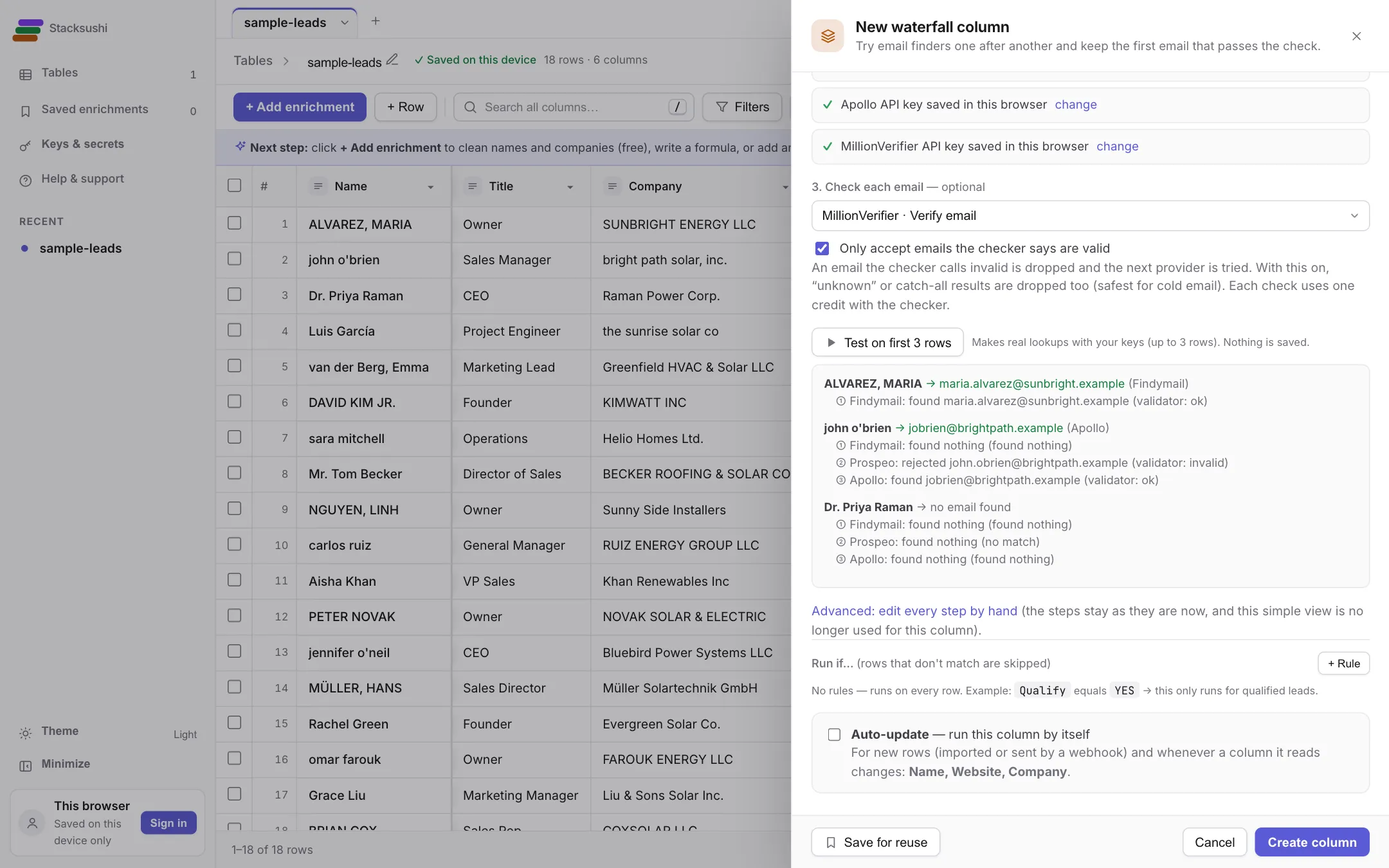
In this example:
- Maria Alvarez: Findymail found an address and the checker said valid. Done. The others were never asked.
- John O'Brien: Findymail found nothing. Prospeo found an address, but the checker said invalid, so it was thrown away. Apollo found a different address that passed.
- Priya Raman: nobody found anything.
5. Add the column and run it
Click Create column. A new column is added, but it does not run by itself: click Run columns…, choose the new column, test on a few rows, then run the rest (see Running columns). Rows that already have a value are skipped, so running again never pays twice.
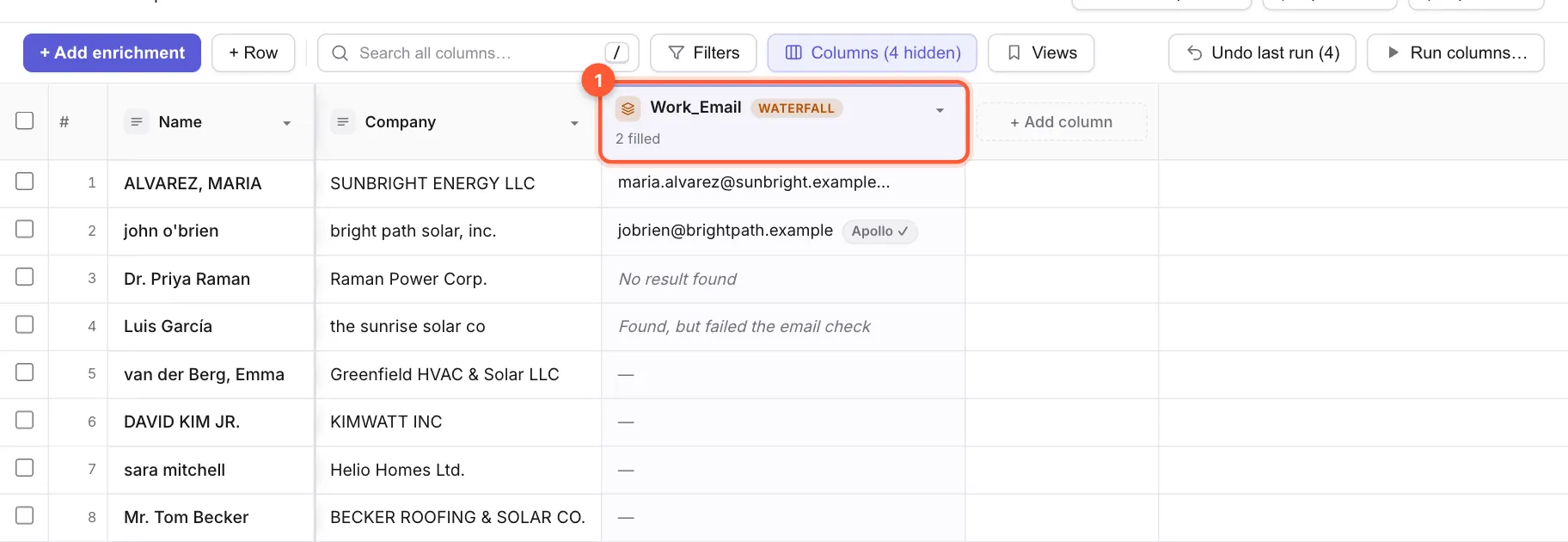
A cell can say No result found (nobody had it) or Found, but failed the email check (an address was found, but the checker said no). The second is worth knowing: the address exists, it just is not safe to send to.
See how a result was found
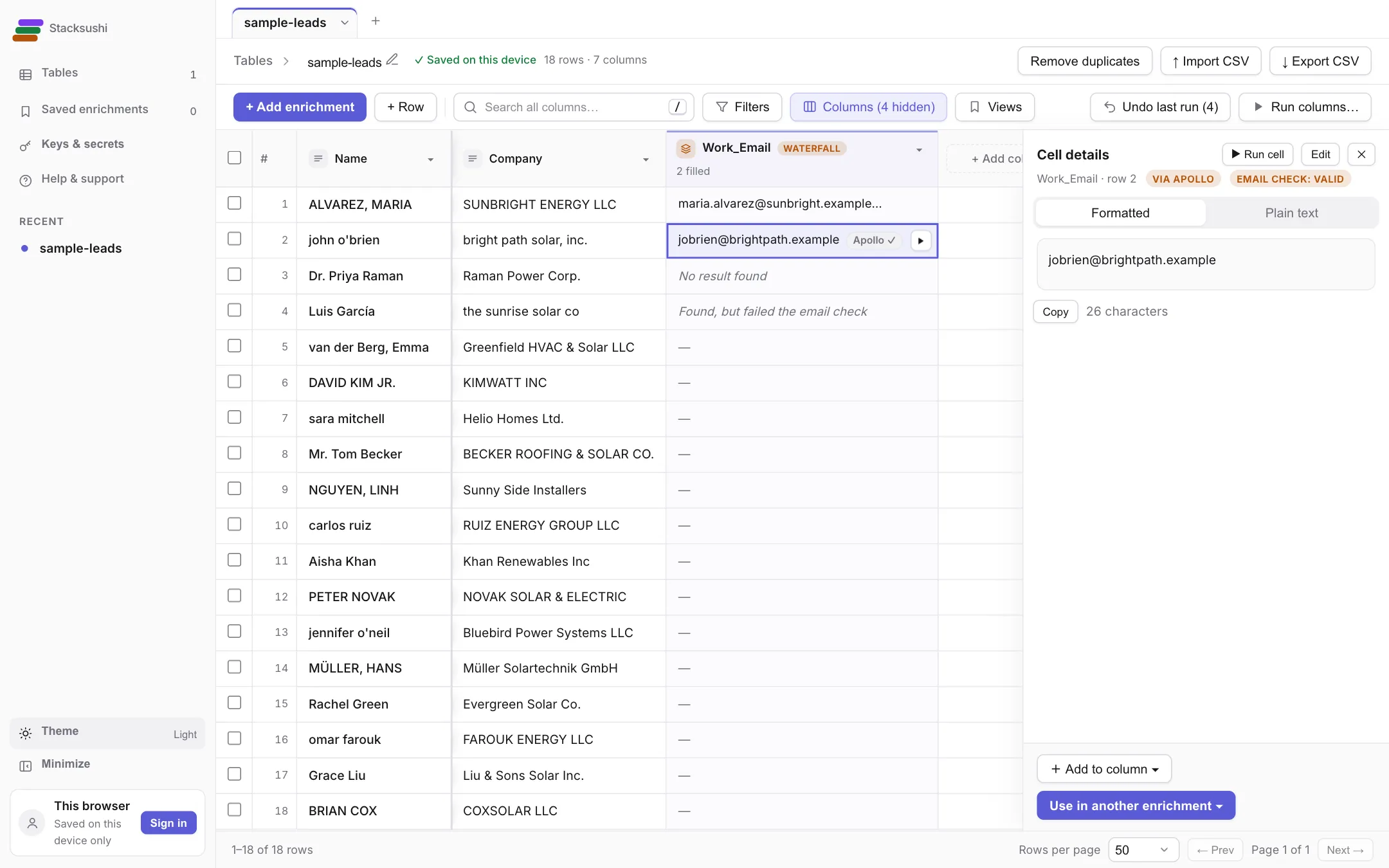
Click a cell with an email. The details show VIA (which provider found it) and EMAIL CHECK (what the checker said). When you export, these come out as extra columns, (source) and (check), so you can filter your list in your sending tool.
Good to know
- Use it again. Open the column's menu, Edit settings, Save for reuse. It then appears under Saved by you in every table.
- More control. Waterfall (advanced) lets you build every step yourself: your own API calls, AI and formulas, in any order.
- More providers. The list is not fixed. If you need one that is missing, email support@stacksushi.com.
- Phone numbers. This waterfall finds work emails only for now.